The tour
From an idea to a launch, screen by screen.
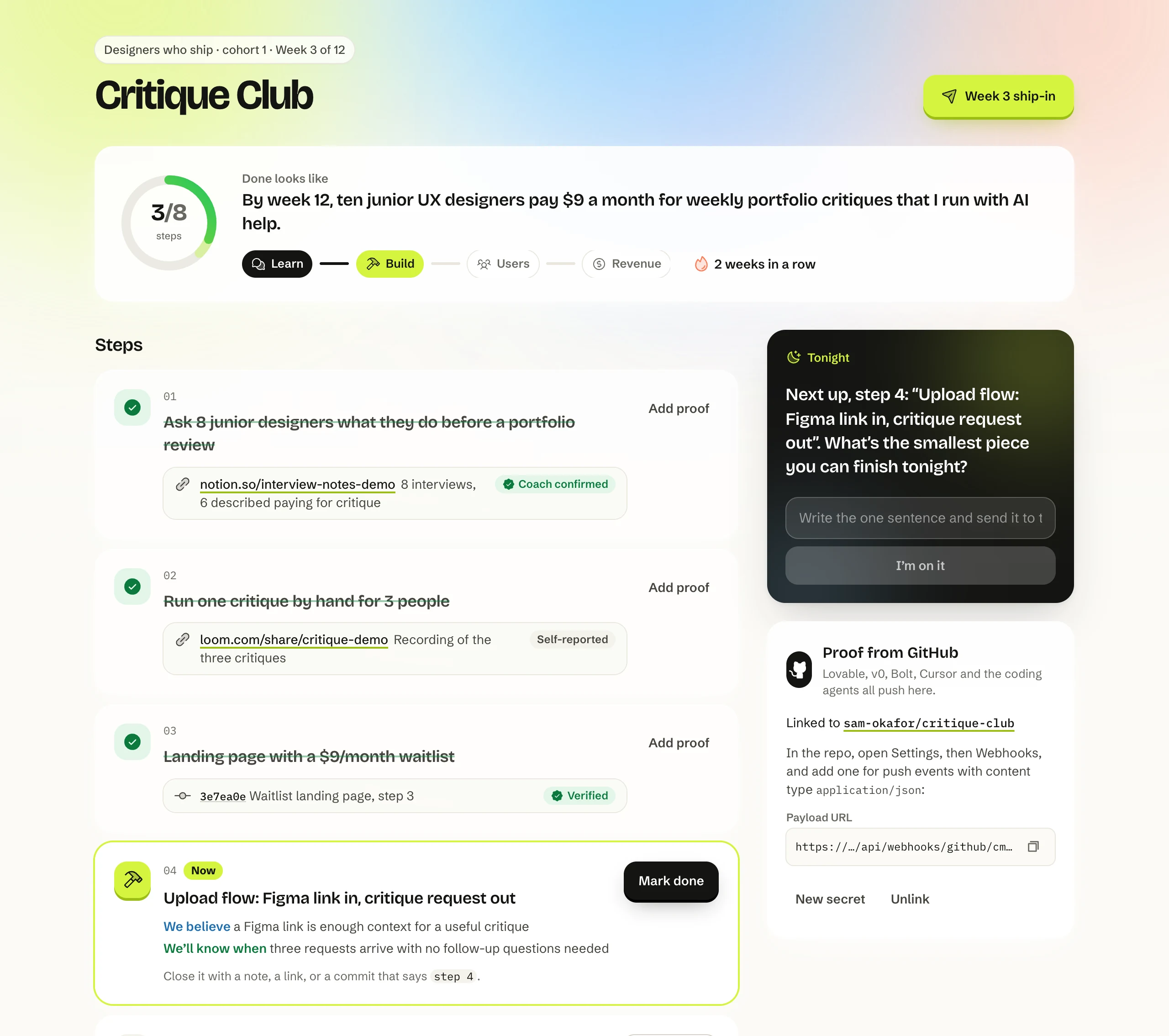
These are the real screens, filled with the app’s demo data: Sam is three weeks into Critique Club, a weekly critique for junior designers, in a pod with a coach.
In the browser
Twelve weeks, six screens.
- Step 01
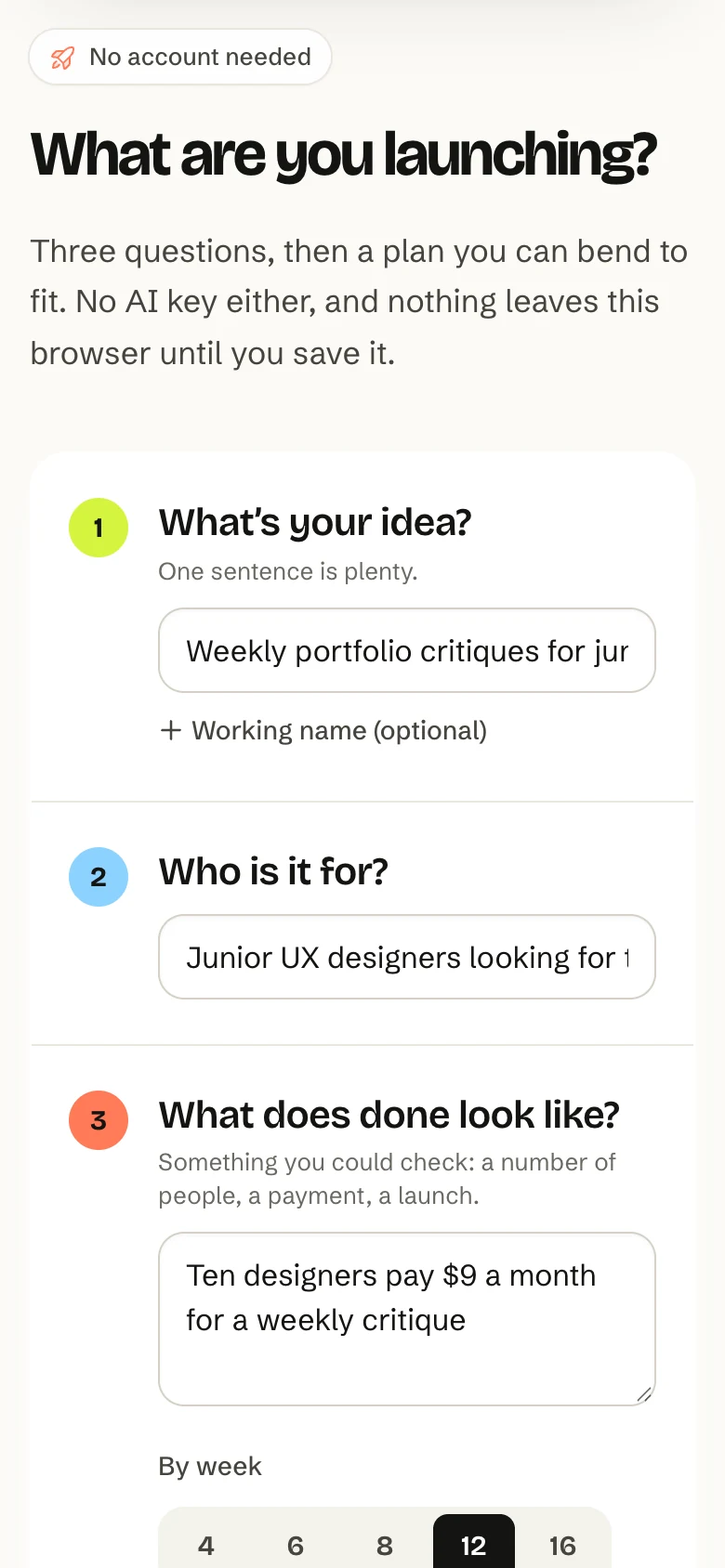
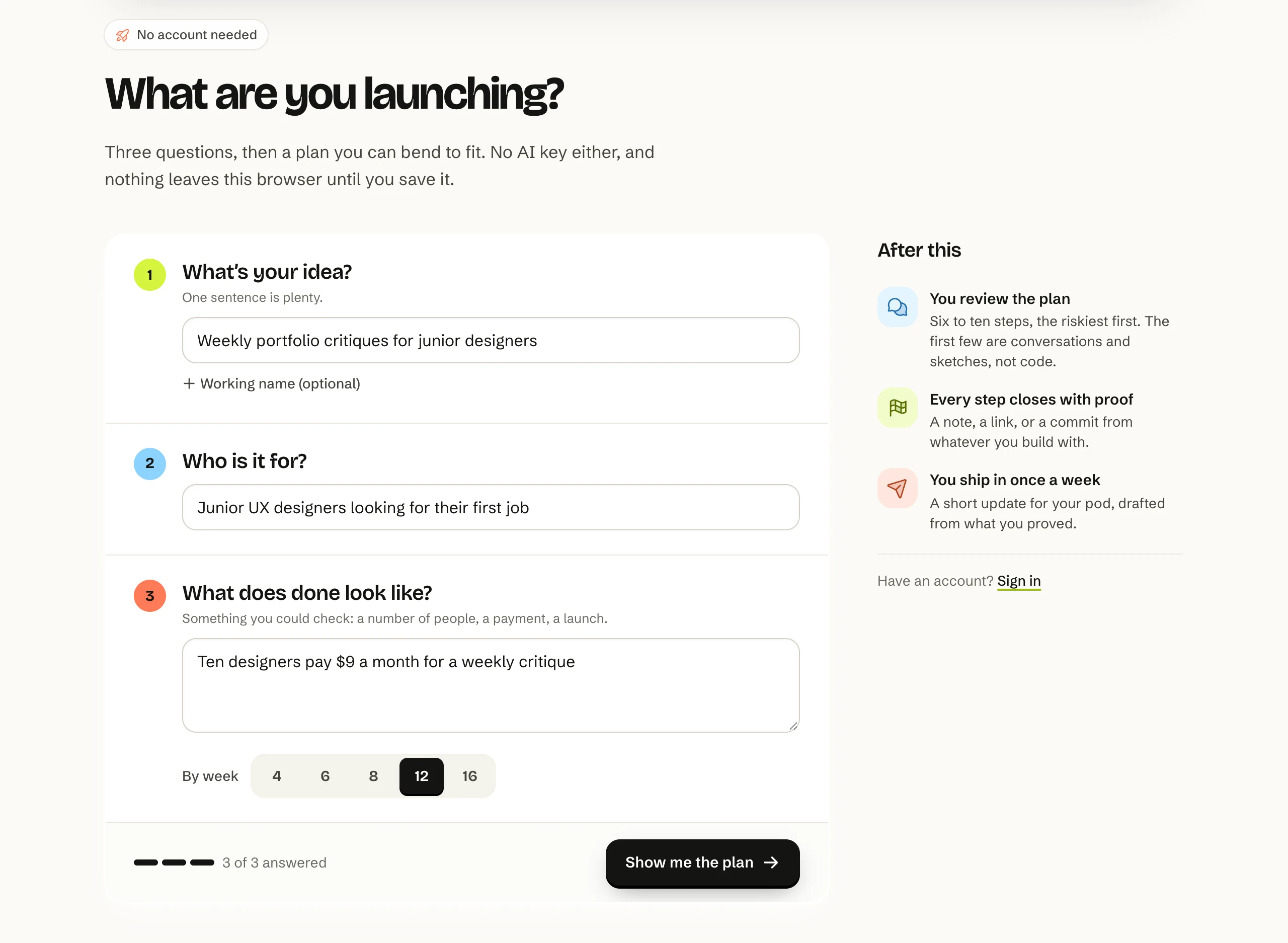
Answer three questions
What’s your idea, who is it for, and what does done look like? One sentence each, and pick how many weeks you’re giving it.
- No account and no AI key to start.
- Your answers stay in this browser until you save them.
- Step 02
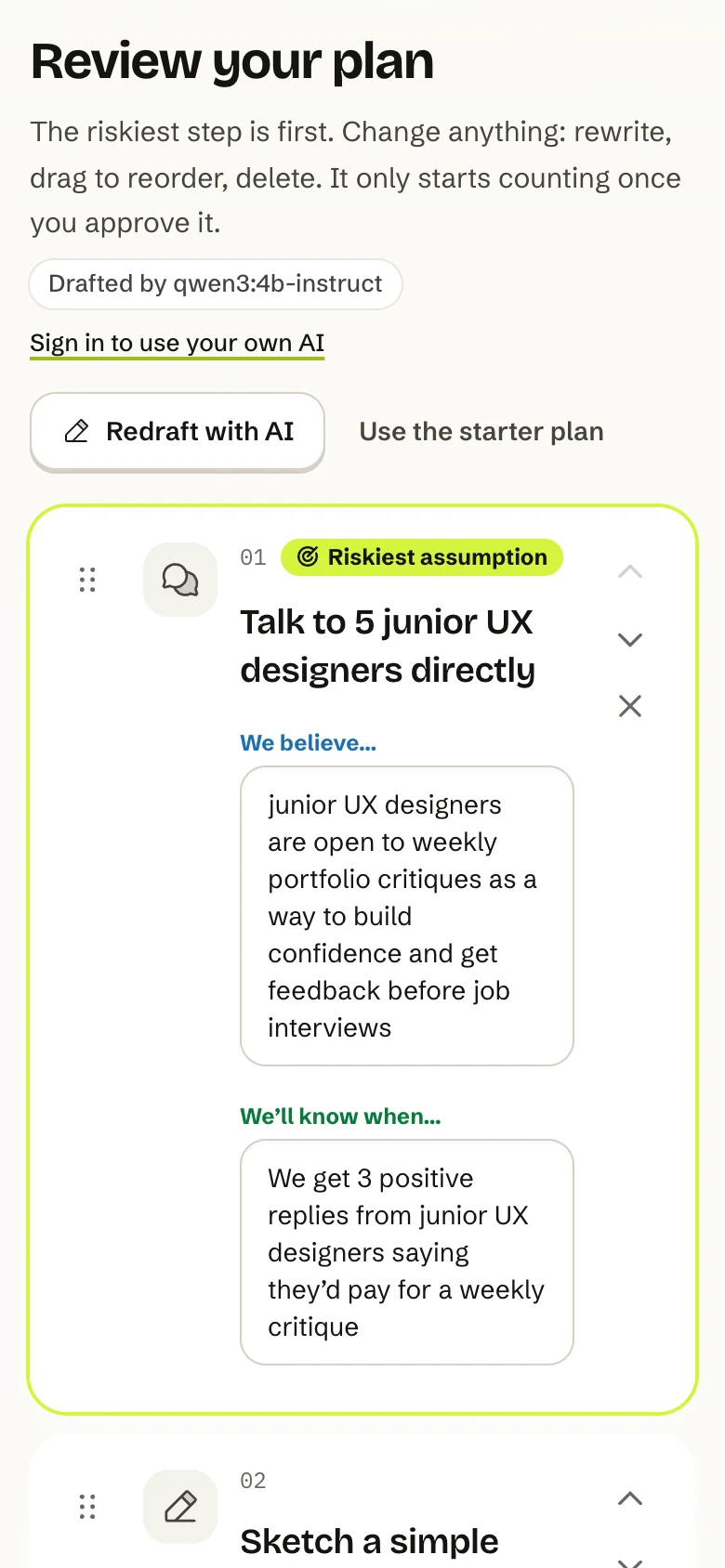
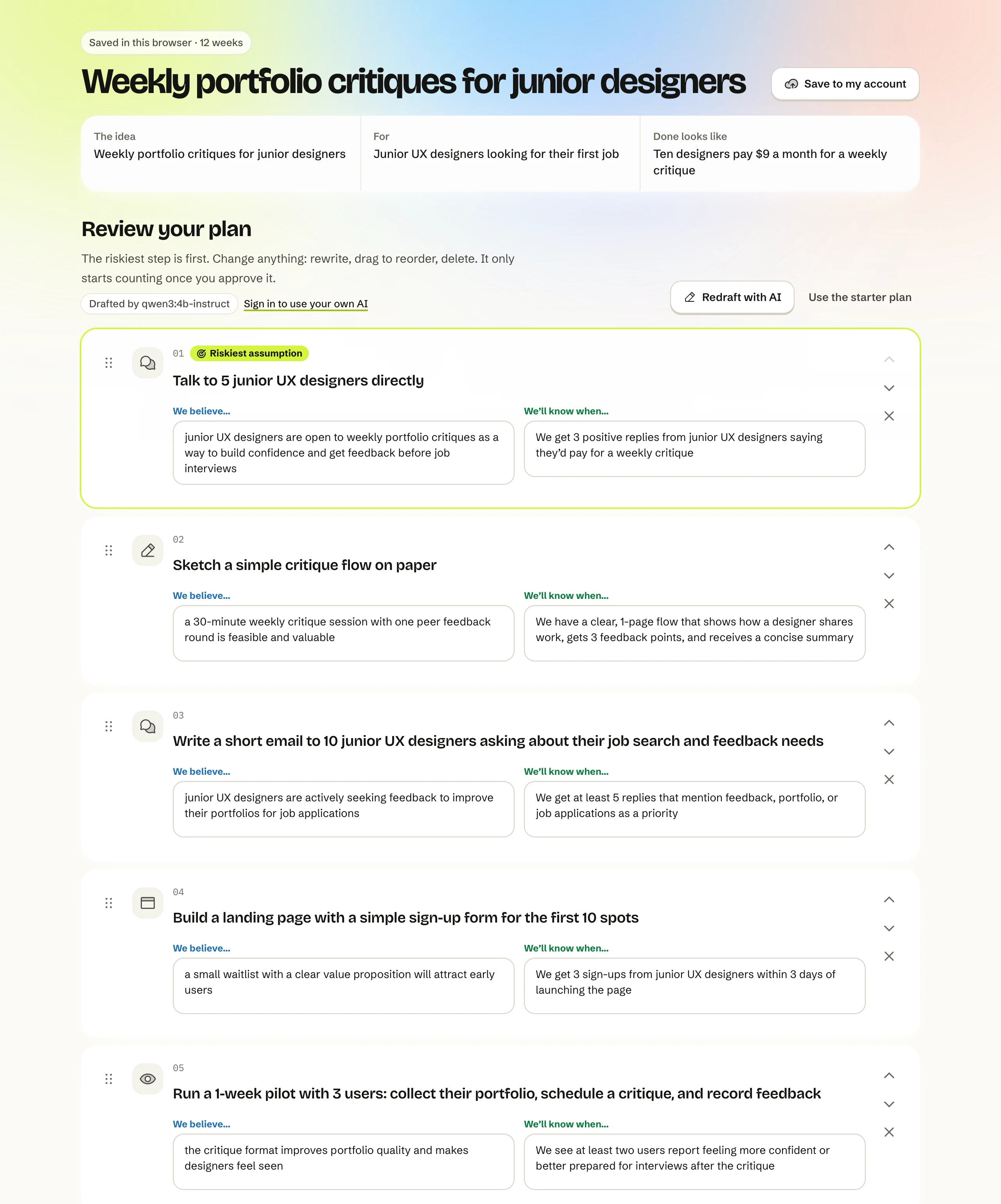
Review a plan with the riskiest step first
Six to ten steps, starting with the one most likely to prove you wrong. Each says what you believe and how you’ll know.
- Rewrite, drag to reorder, or delete anything.
- Drafted with AI when one is set up, or start from the starter plan.
- Step 03
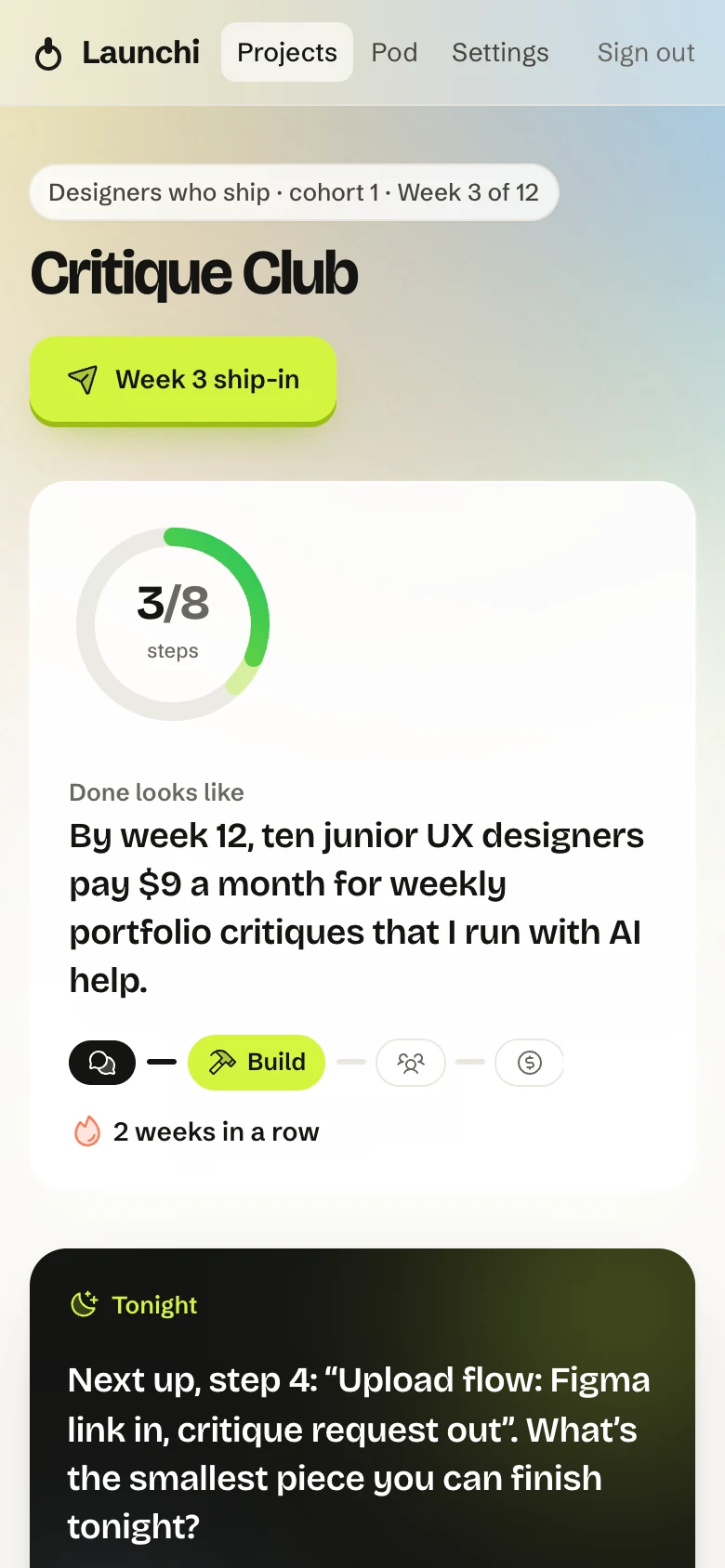
Close each step with proof
Your project shows where you are, from Learn to Build to Users to Revenue, and the one step that’s next. A step closes with a note, a link or a commit.
- Link a GitHub repo and a commit that says “step 4” closes step 4.
- Commits verify themselves; your coach can confirm a link.
- Step 04
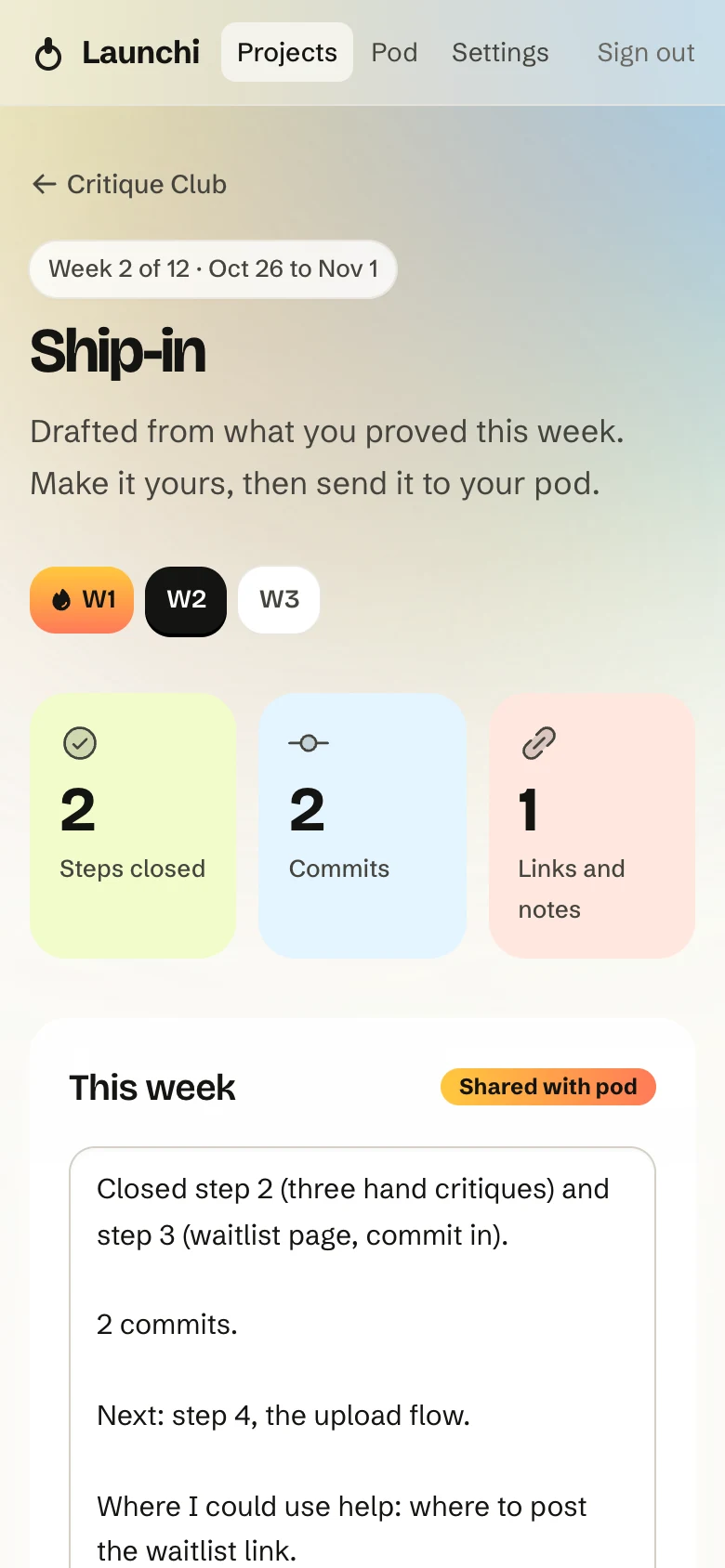
Ship in once a week
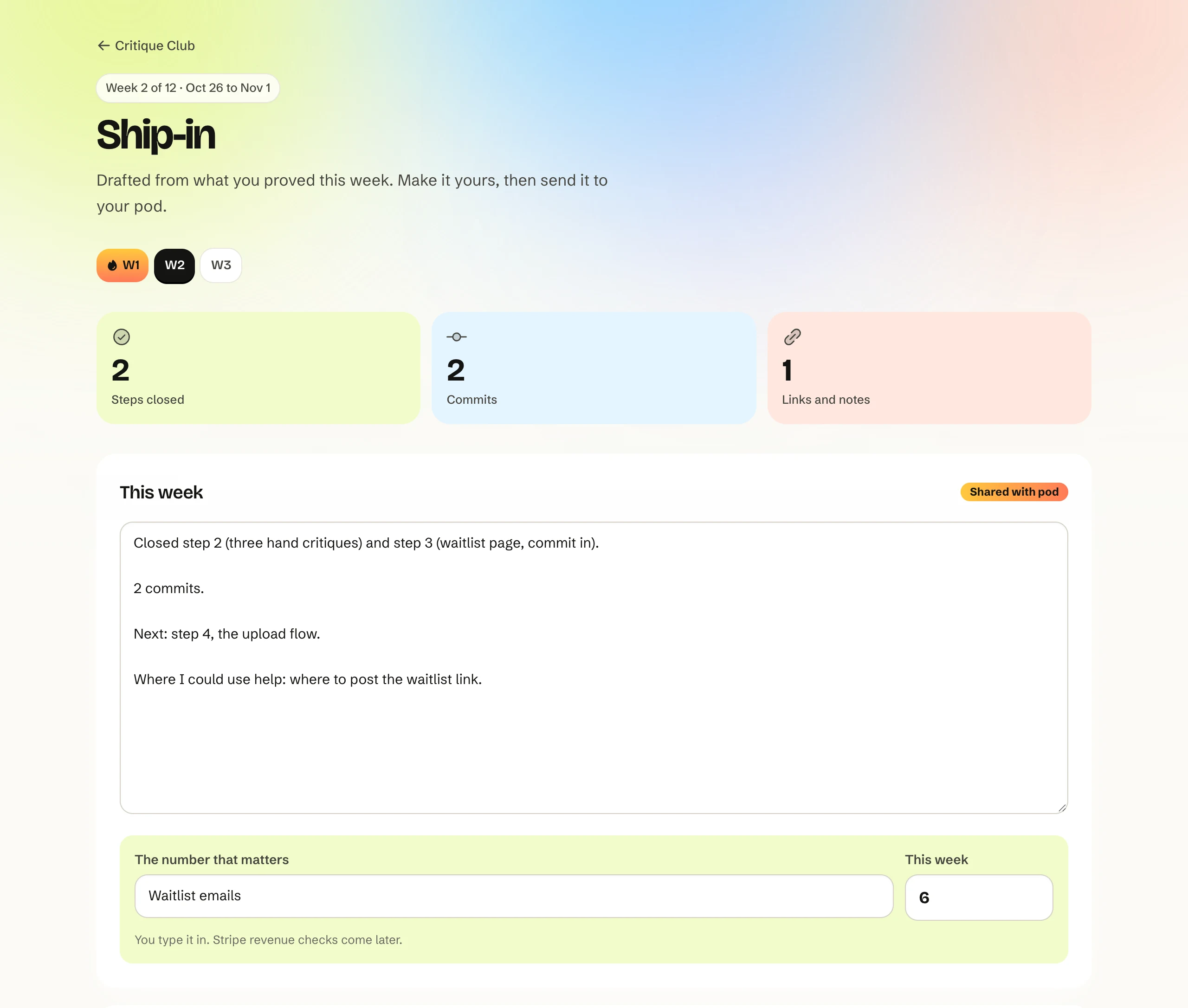
The ship-in drafts itself from what you proved that week: steps closed, commits, links. Add what you learned and where you could use help, then send it to your pod.
- Type in the one number that matters this week.
- Make it public if you like; the link shows only what you switch on.
- Step 05
Build next to your pod
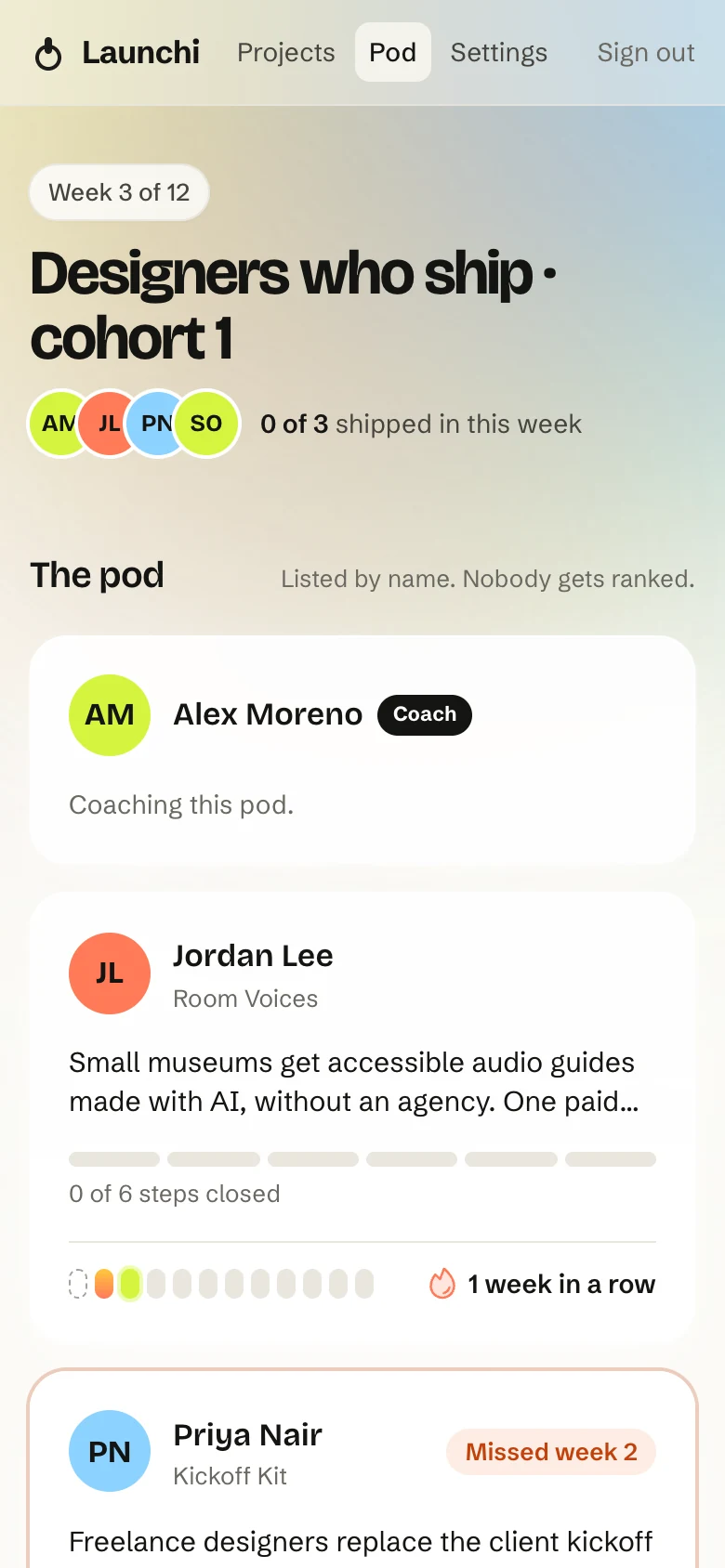
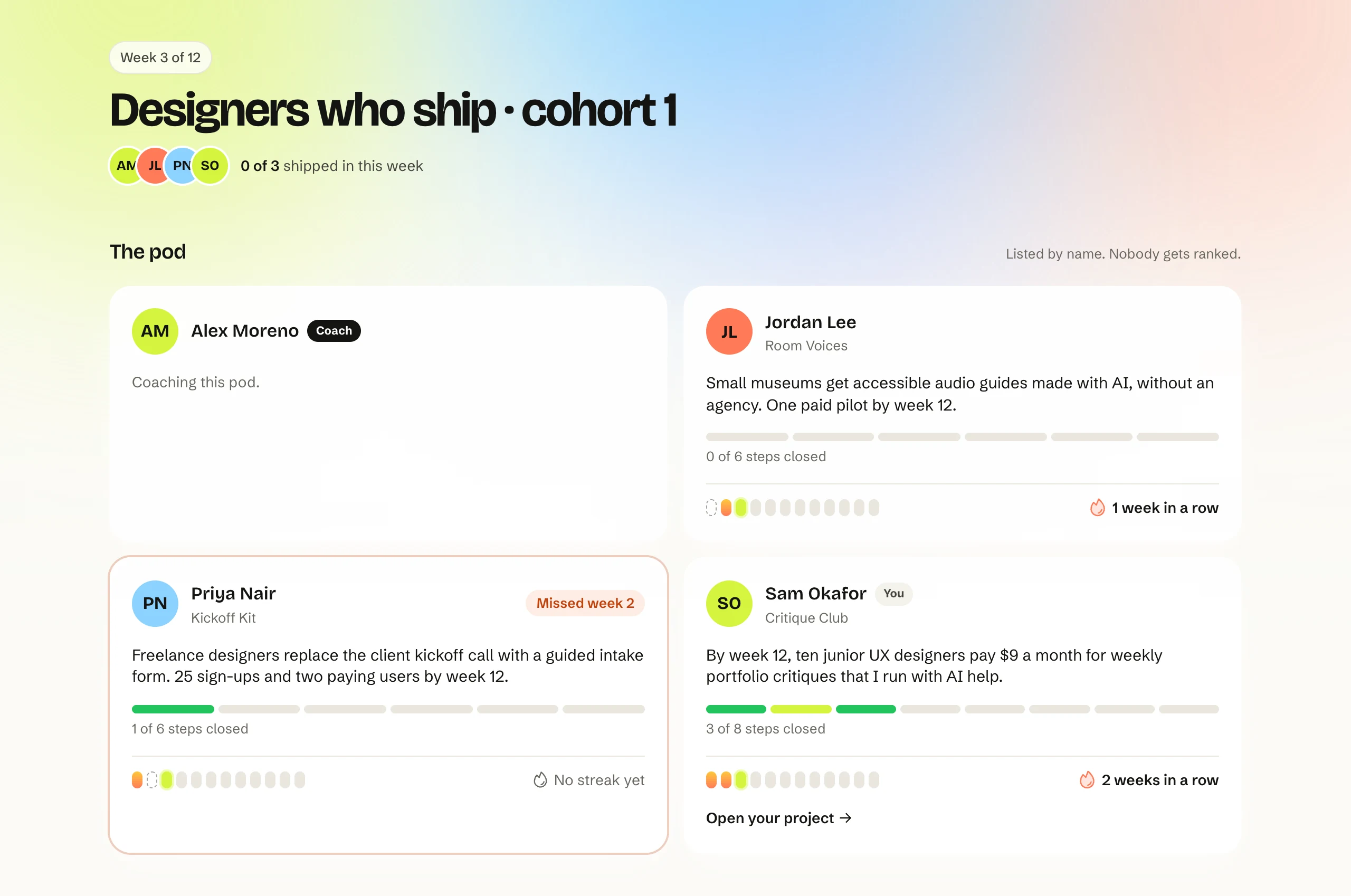
Five to eight builders who start the same week, and a coach who has launched. You see each other’s goals, steps closed and weekly streaks.
- Listed by name. Nobody gets ranked.
- A missed week shows, and the next ship-in starts the streak again.
- Step 06
Hear back from your coach
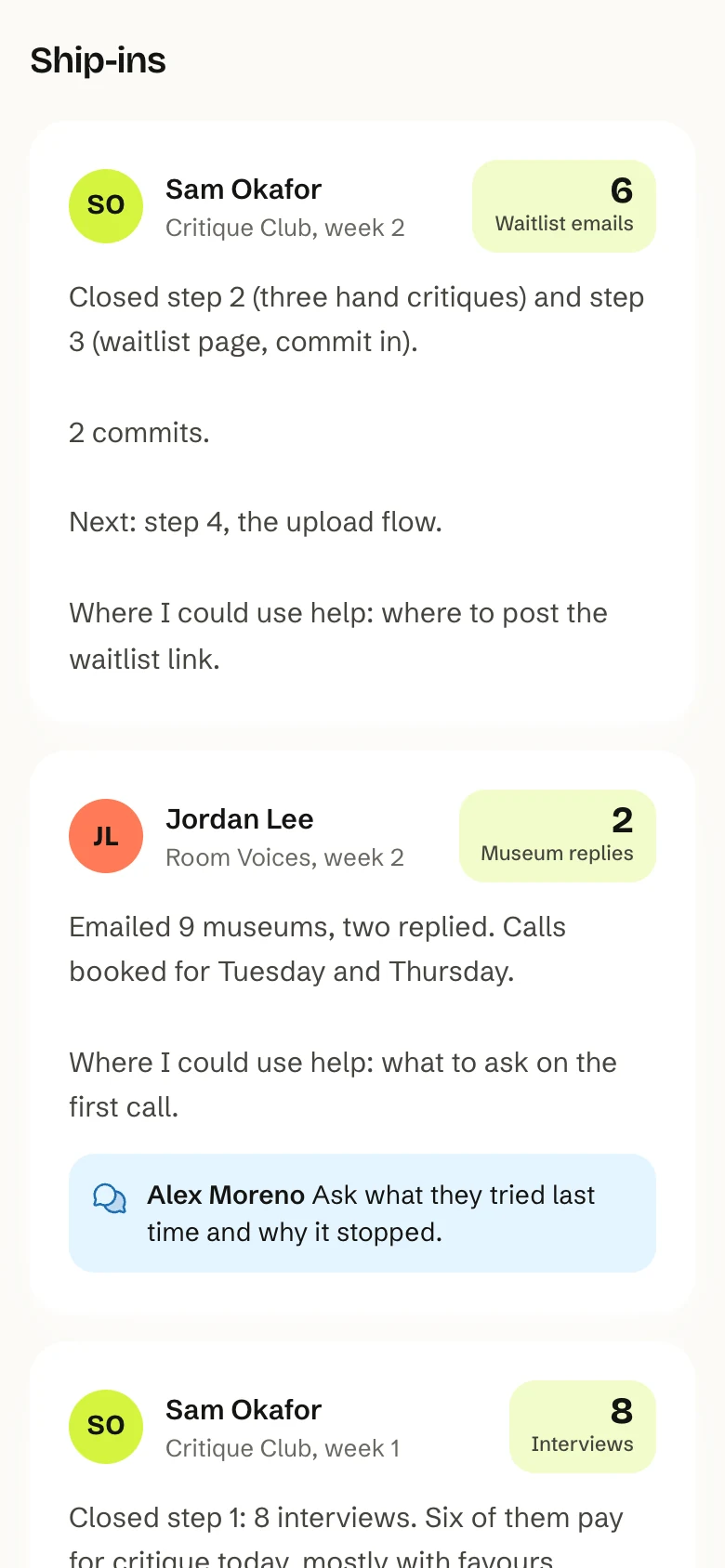
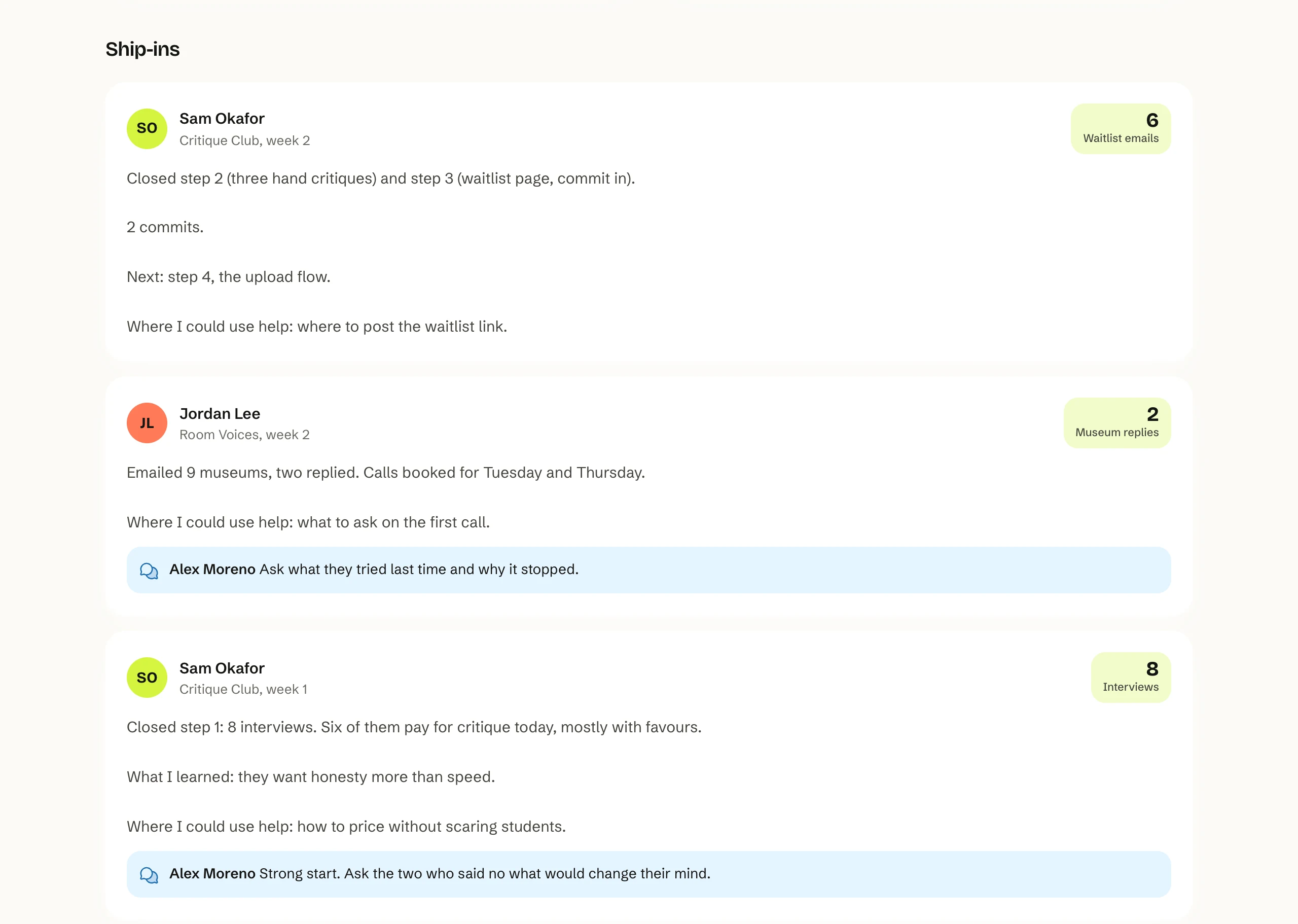
Ship-ins land in the pod, newest first. The coach answers under each one with the next thing to try.
- Everyone in the pod can read the replies, not only the person who asked.
Launchi for Mac
A launch mentor in your notch.
A companion for the hours you spend building. It asks what you’re launching, who it’s for and when, then keeps the next step, your projects and your numbers one glance away.
In development
Now
Your launch countdown and the one next thing to do, with a streak and short daily quests.
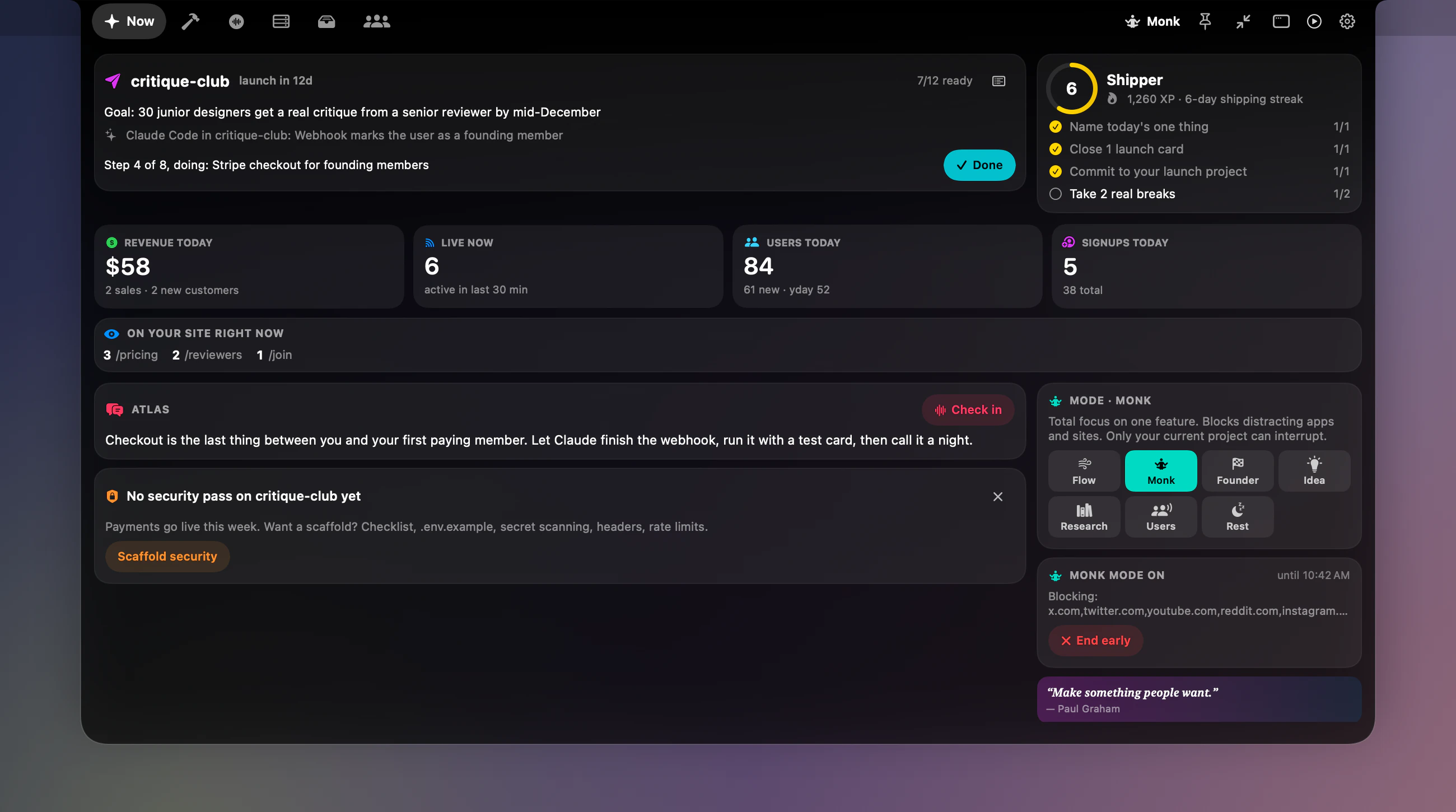
Modes
Flow, Monk, Founder, Idea, Research, Users and Rest. Each decides what may interrupt you, what waits for a glance, and what goes to the inbox or a digest.
Projects
Found in your project folders: last commit and CI, agent status and errors, a focus, a board, goals and a launch checklist.
Launch numbers
Stripe, GA4, Search Console, Cloudflare, Supabase sign-ups or any JSON endpoint. A sale or a sign-up gets a celebration.
Agents
Every Claude Code session and its tasks, what needs you, and how much of your usage window is left.
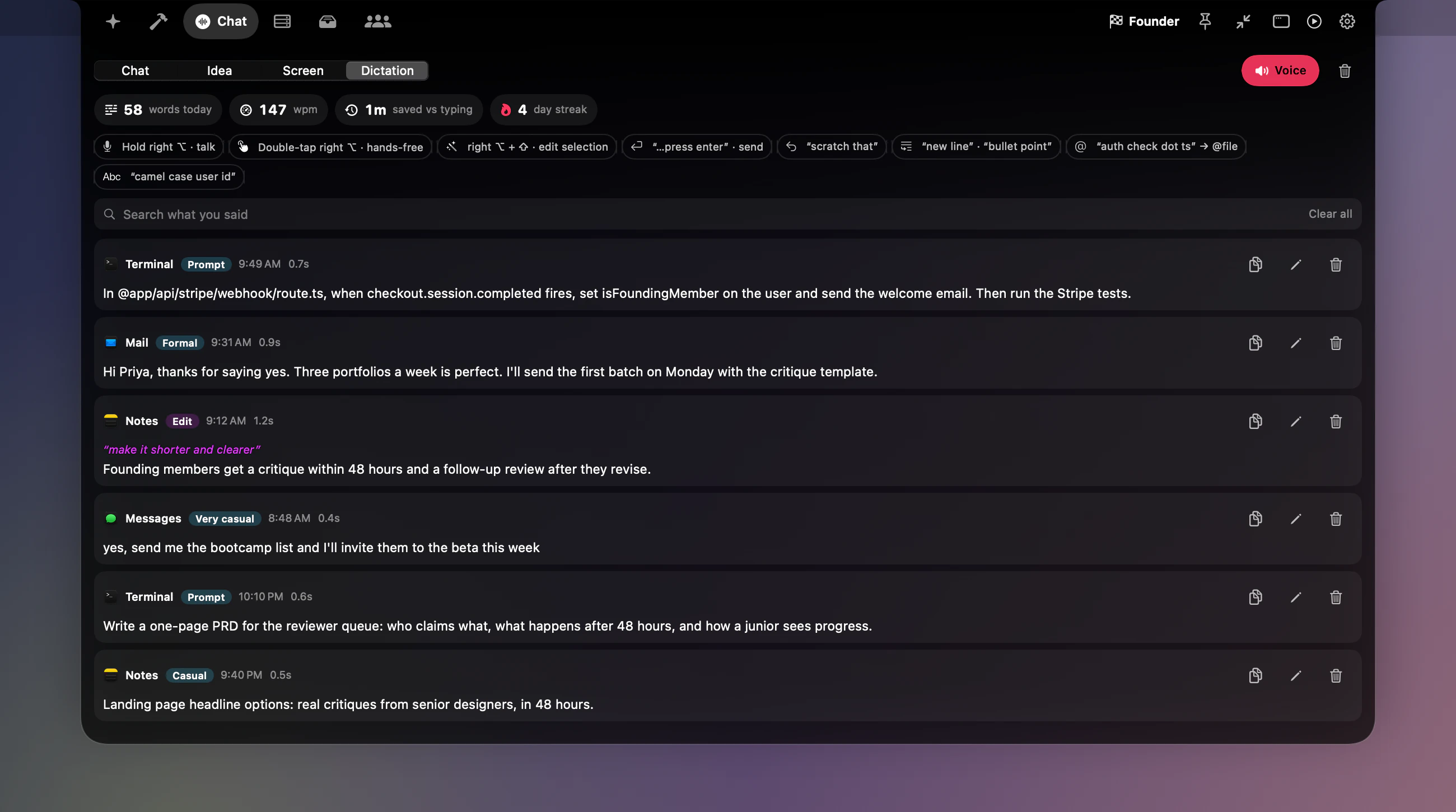
Dictation
Hold right Option, speak, let go: the text is cleaned up and pasted. By default it’s transcribed on your Mac.
Machine
What’s running on your Mac: local servers with their project and memory, Docker, CPU, GPU and temperatures, and how fast your local models run.
Your keys
Bring your own AI key, or run a local model. Keys pasted into a prompt are caught and redacted on your Mac.
- 01
The notch, closed
Launchi wraps around your notch. Left side: your mode and what's waiting for you. Right side: the one number you care about today.

- 02
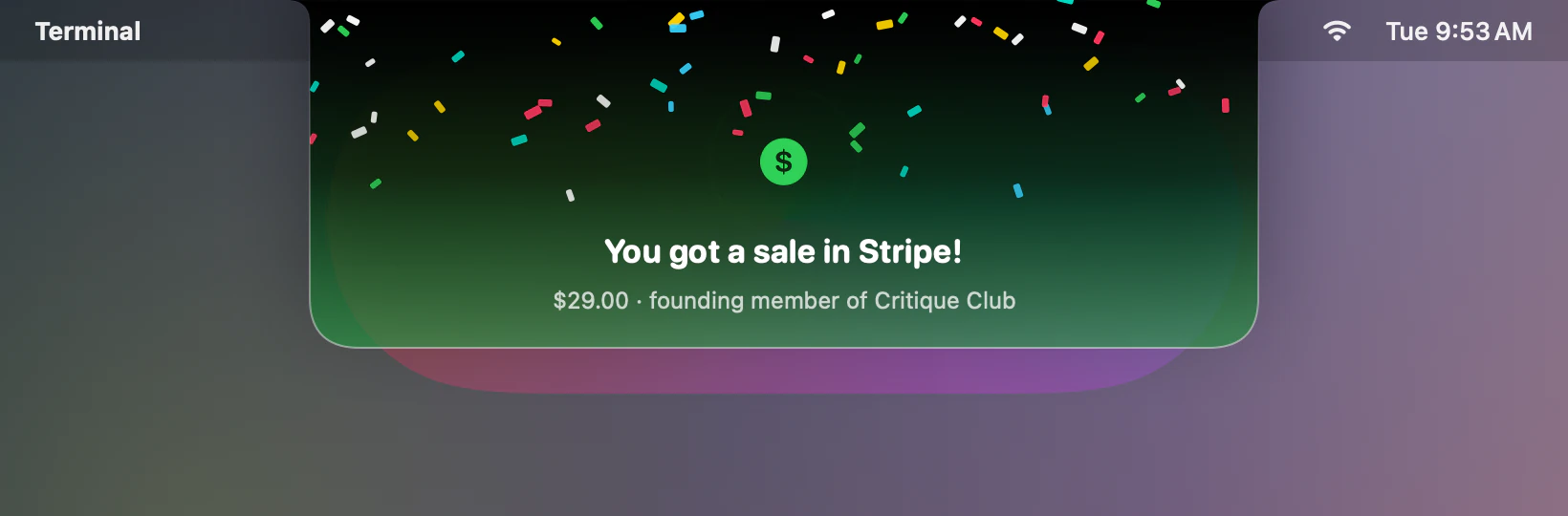
Real wins get a moment
A sale or a new user drops a card with confetti, and your mentor can say it out loud. Launchi saves this for things that move your launch.
- 03
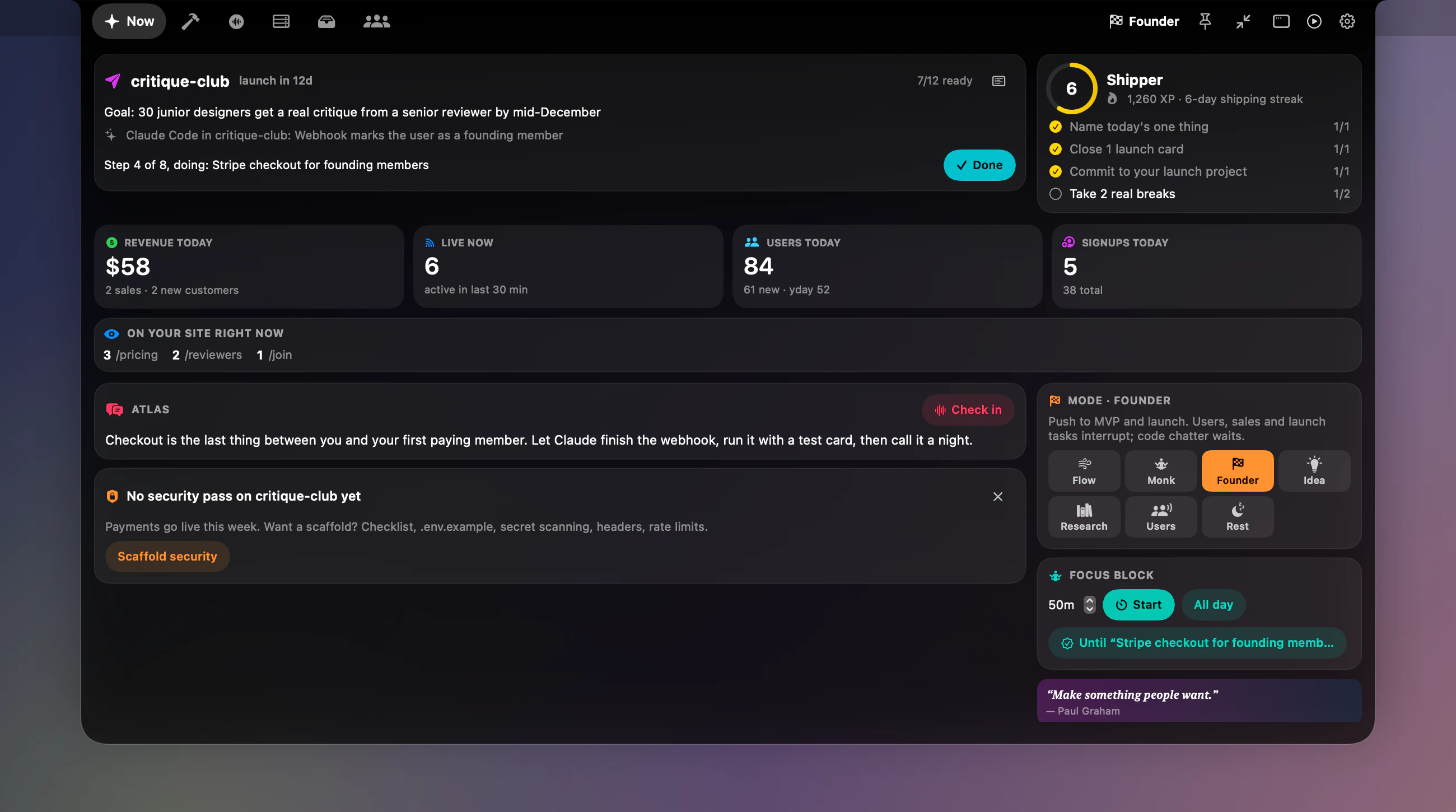
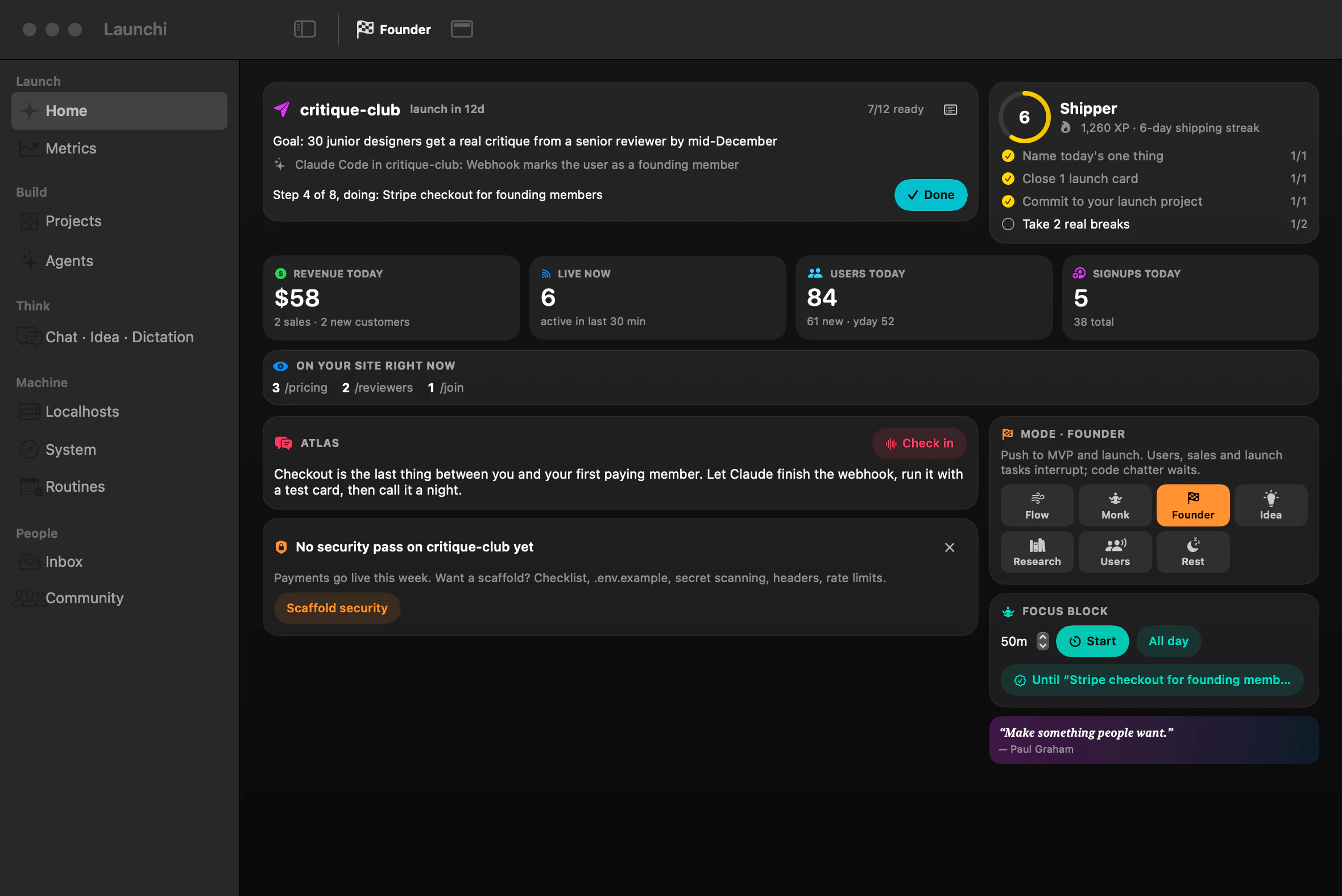
Now: your launch at a glance
Now is home base: the goal in your words, the next step, live launch numbers, your mentor, daily quests and your mode.
- 04
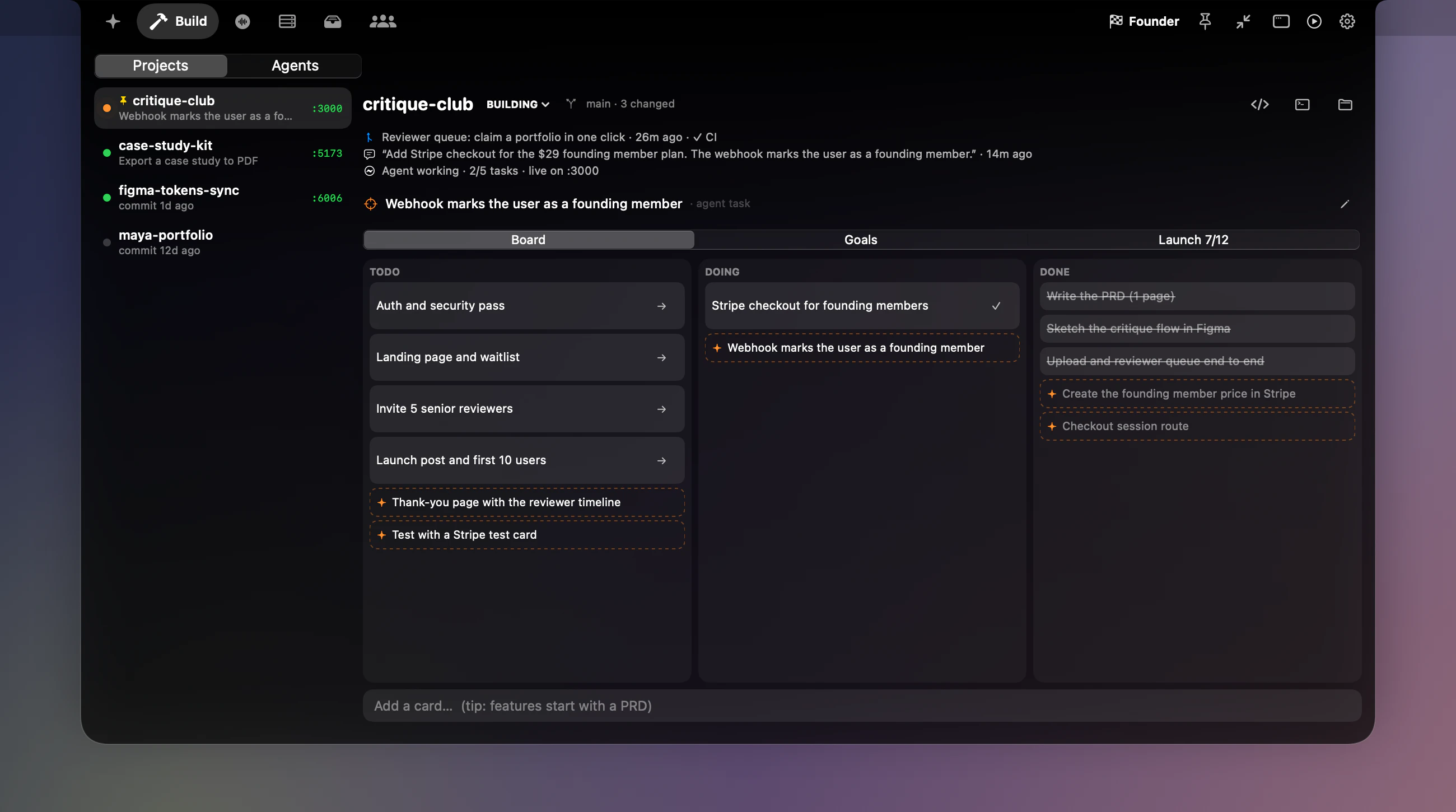
Build: every project in one place
Launchi finds your projects on its own and shows the last commit, the last prompt, what the agent is doing and what's running. Each one gets a board, goals and a launch checklist.
- 05
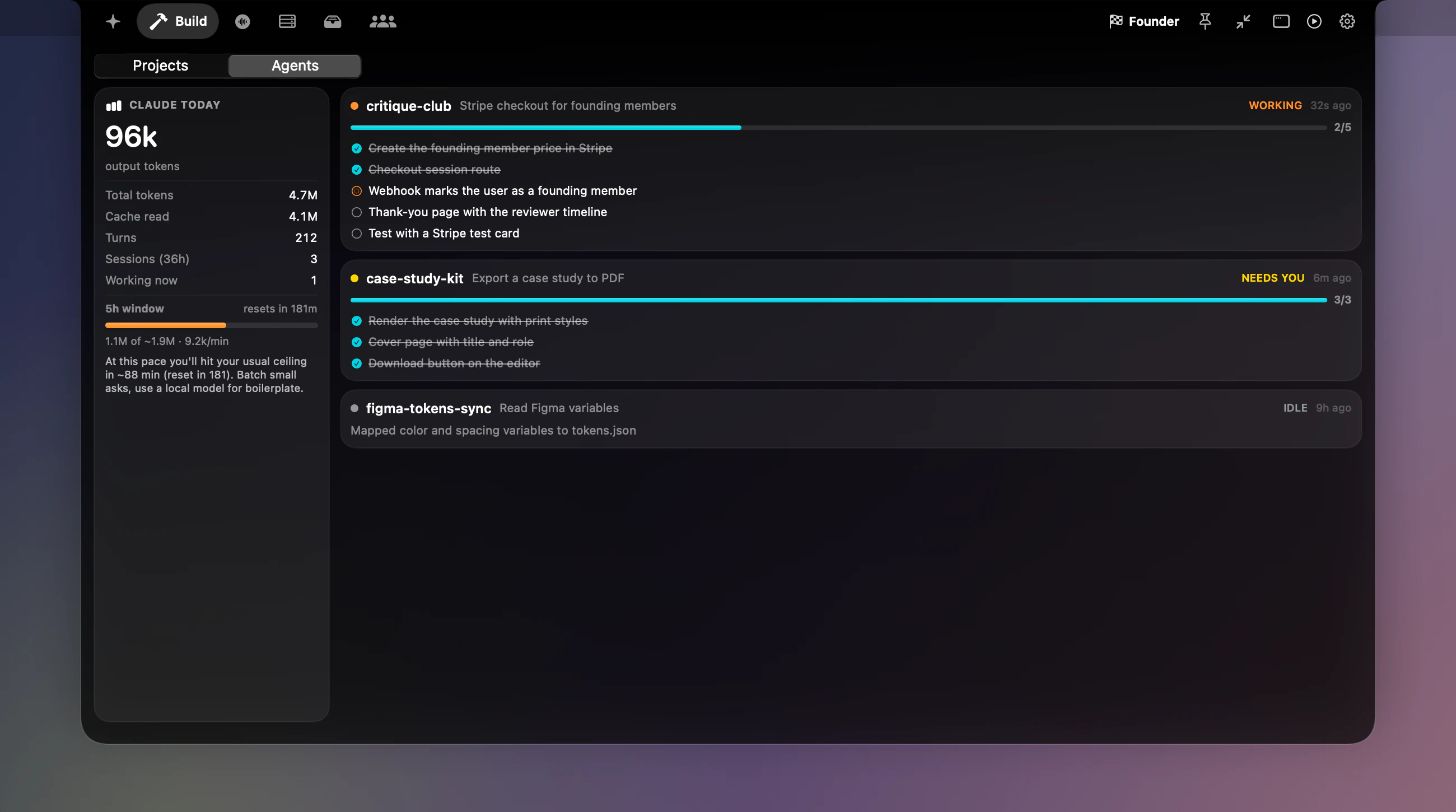
Build: your agents
Every Claude Code session, its to-do list and who needs you. Your 5-hour usage window sits on the left with a heads-up before you hit the wall.
- 06
Dictation anywhere
Hold right Option and talk. Launchi transcribes on your Mac, polishes the text for the app you're in and pastes it. Everything you said stays searchable here.
- 07
Switch modes: Monk
Modes change who can reach you. Monk mode blocks distracting apps and sites for a set time and holds everything but your current project for later.
- 08
Open it as a window
Need more room? Open Launchi as a regular Mac window with a sidebar. Close it and you're back in the notch.
Every other screen
Onboarding, Inbox, Community, the Machine tab, Settings. Open any of them full size.
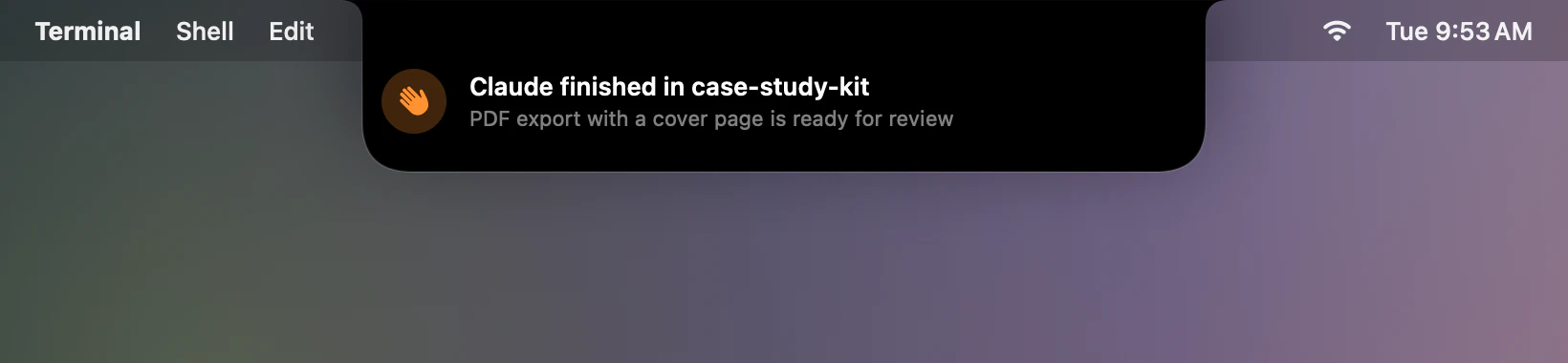
A quiet peek
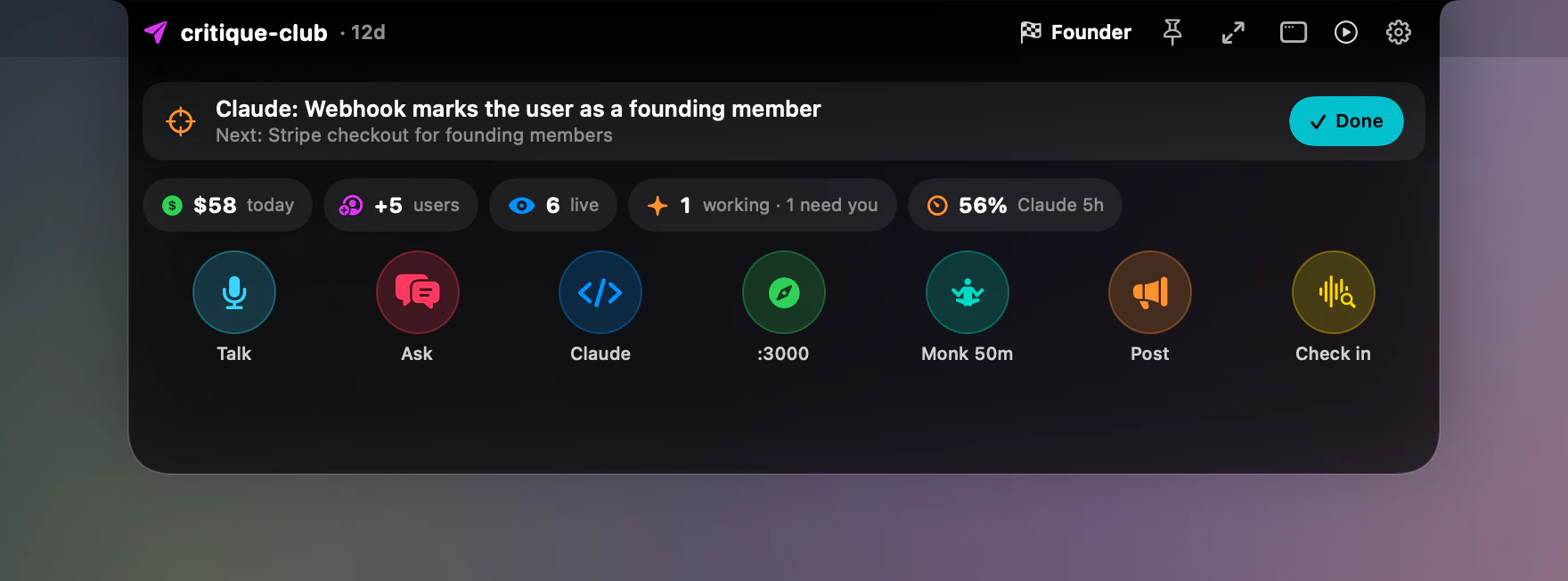
Hover for a glance
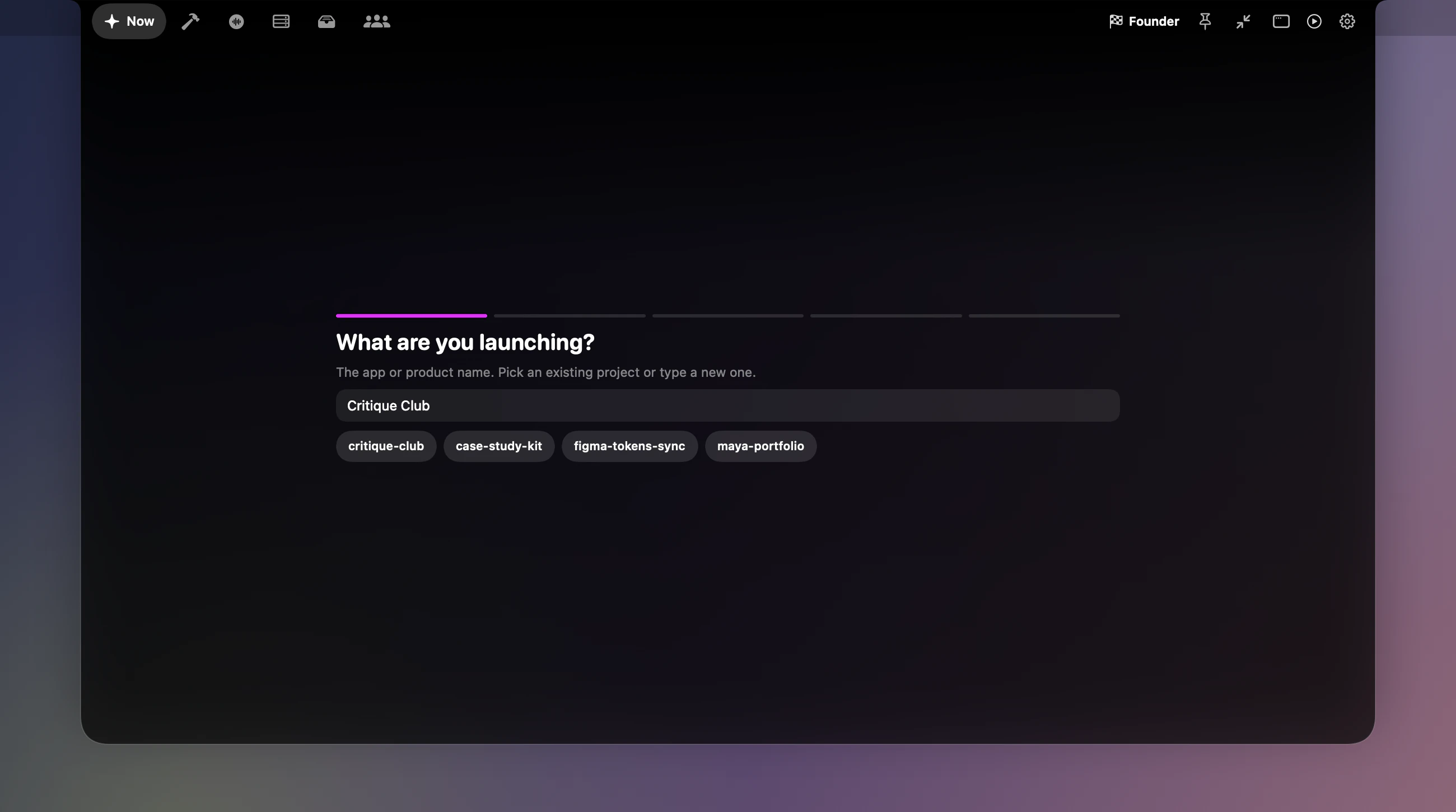
First launch: what are you launching?
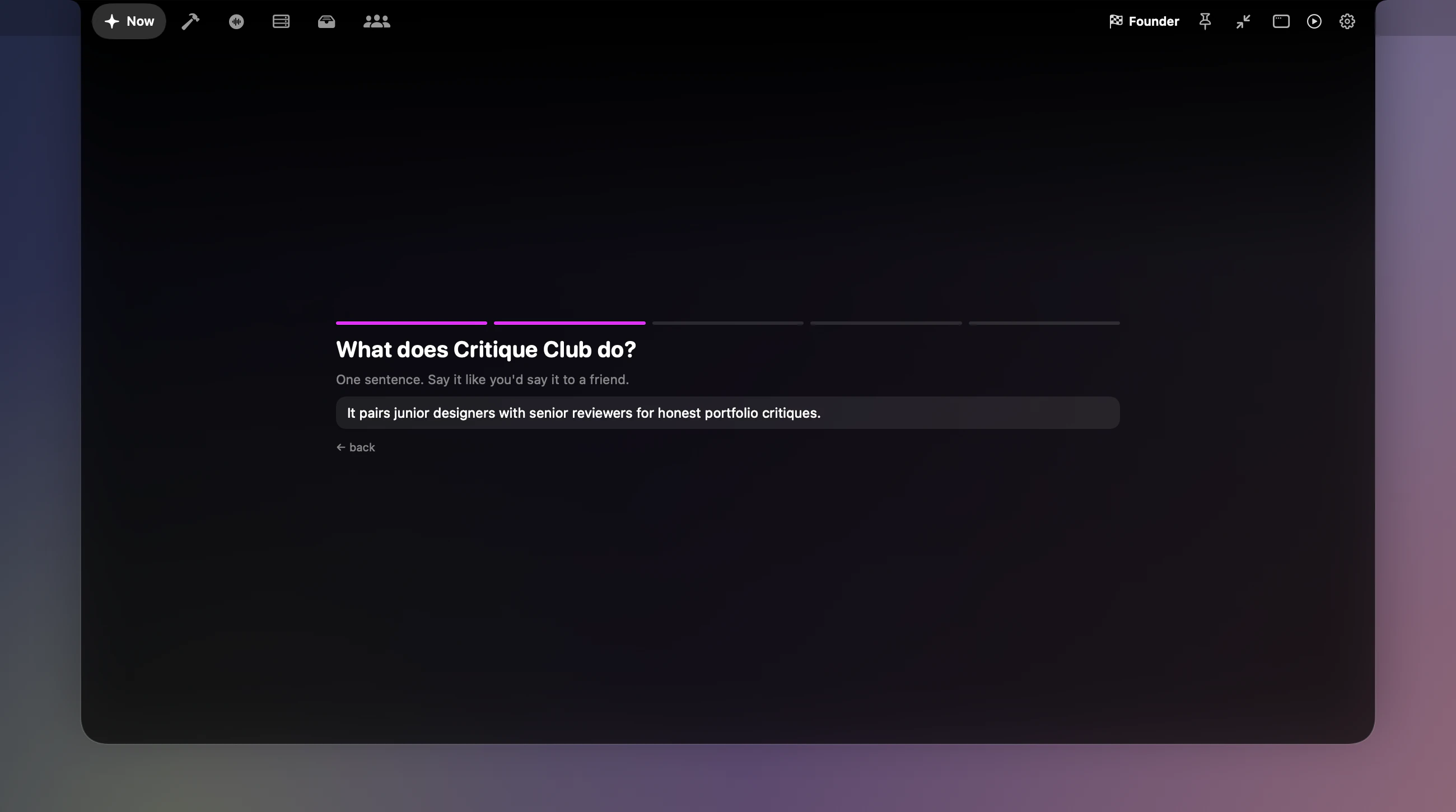
Say what it does
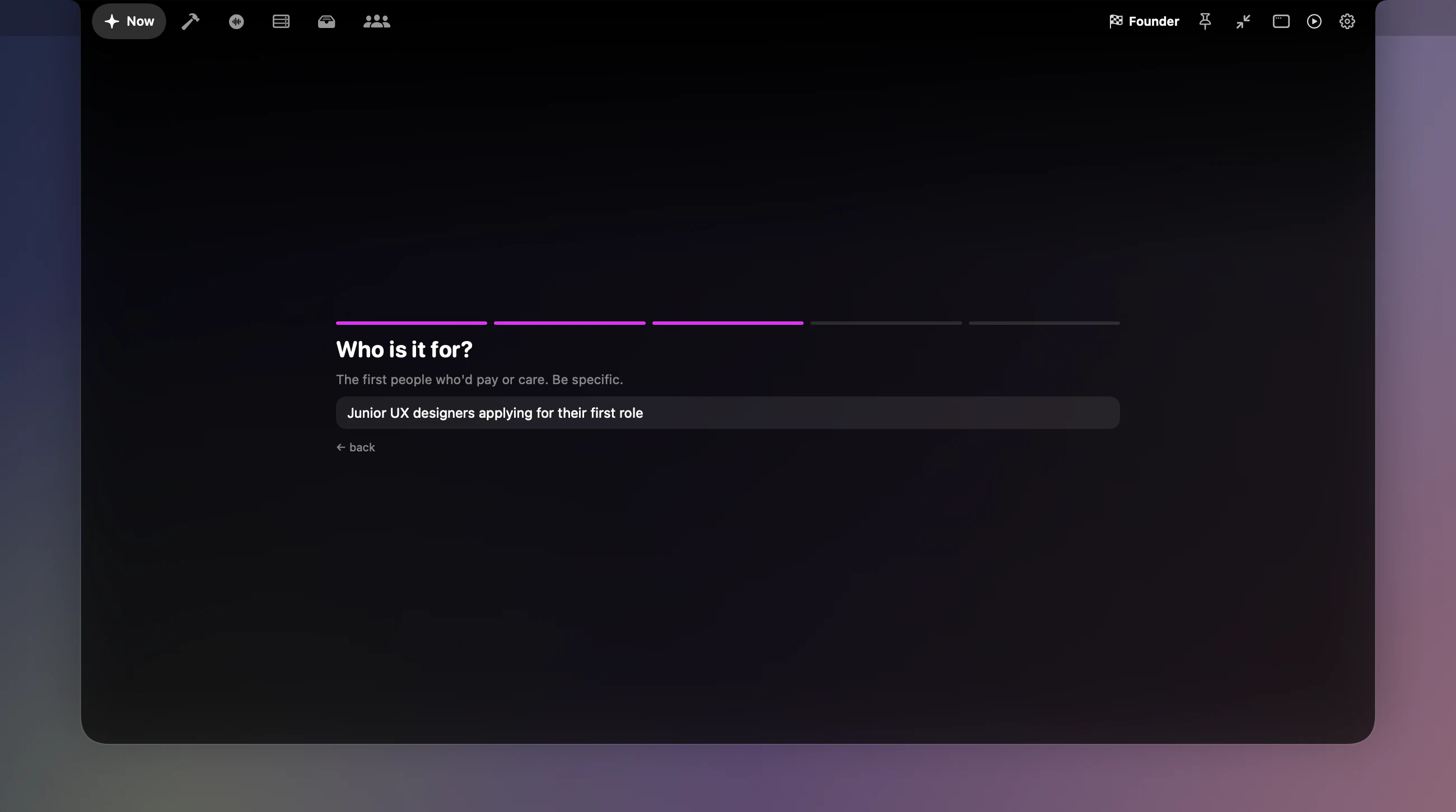
Say who it's for
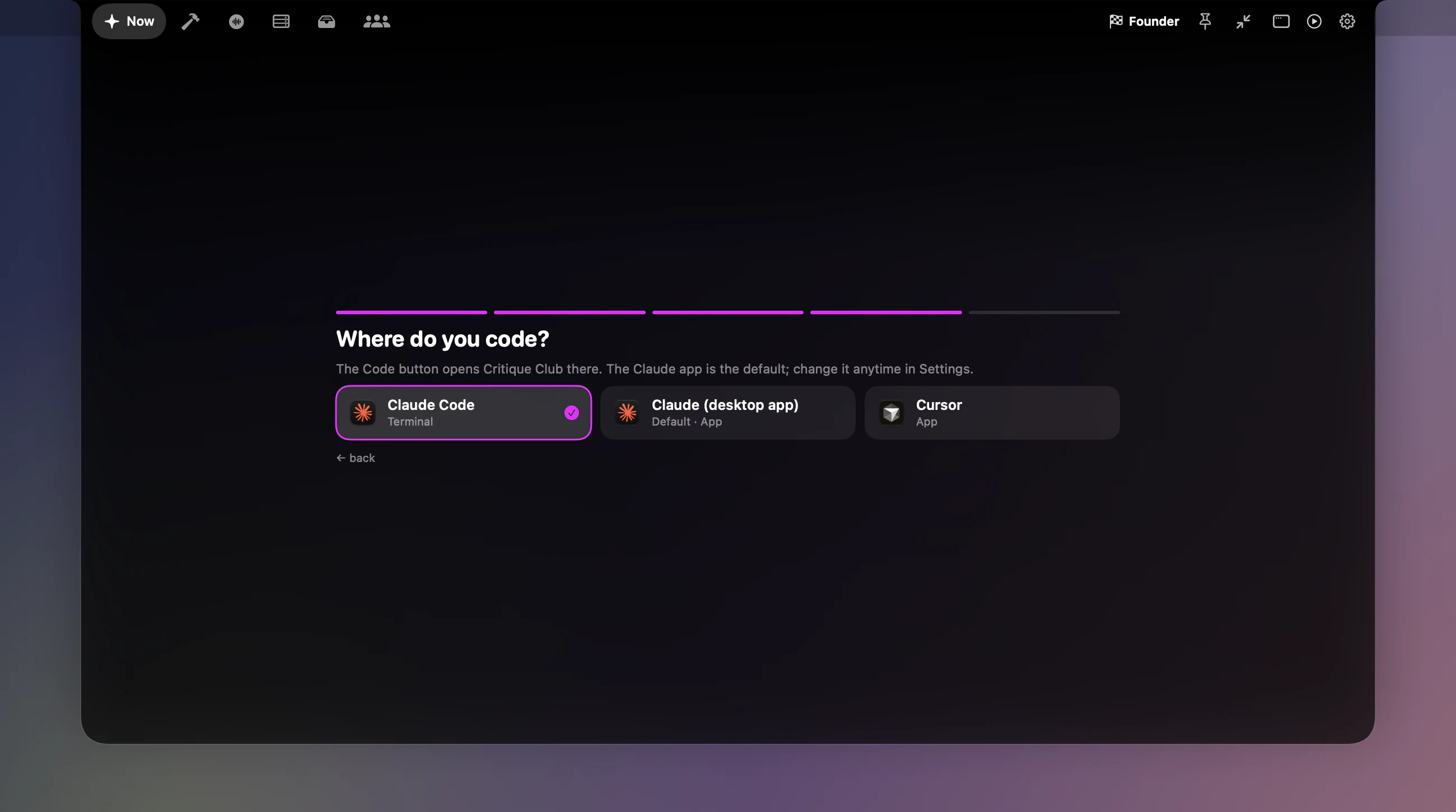
Pick where you code
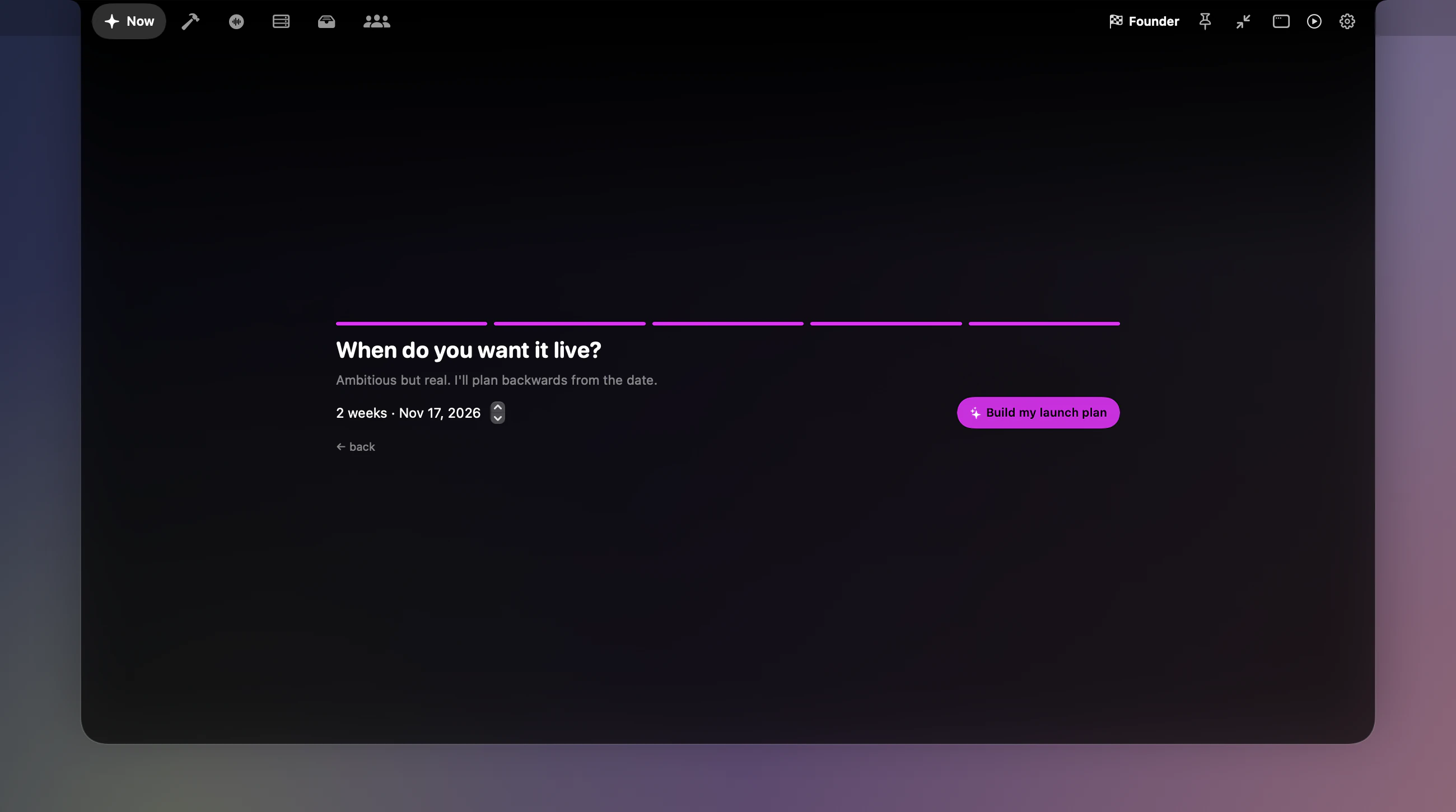
Pick a launch date
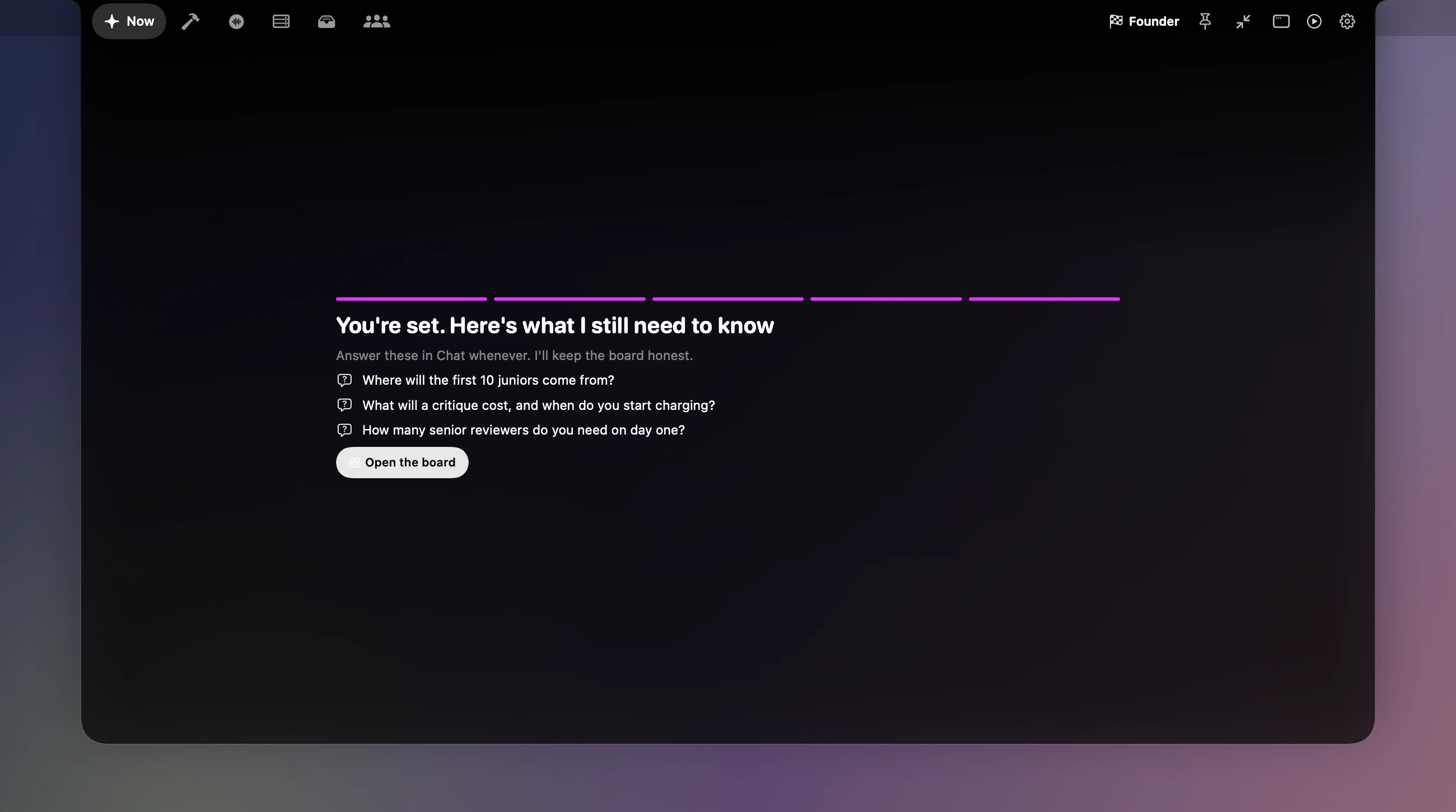
What's still open
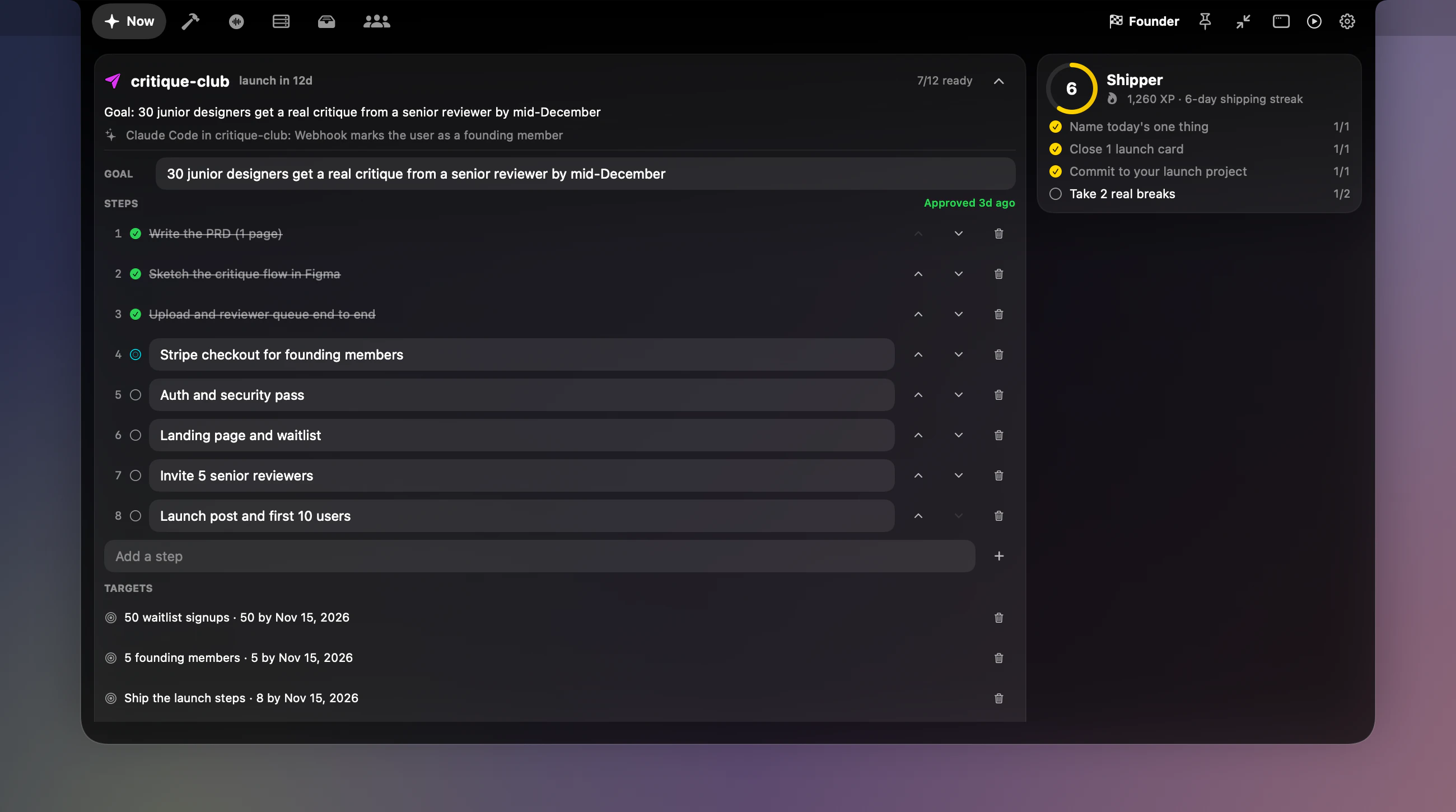
Your plan, your call
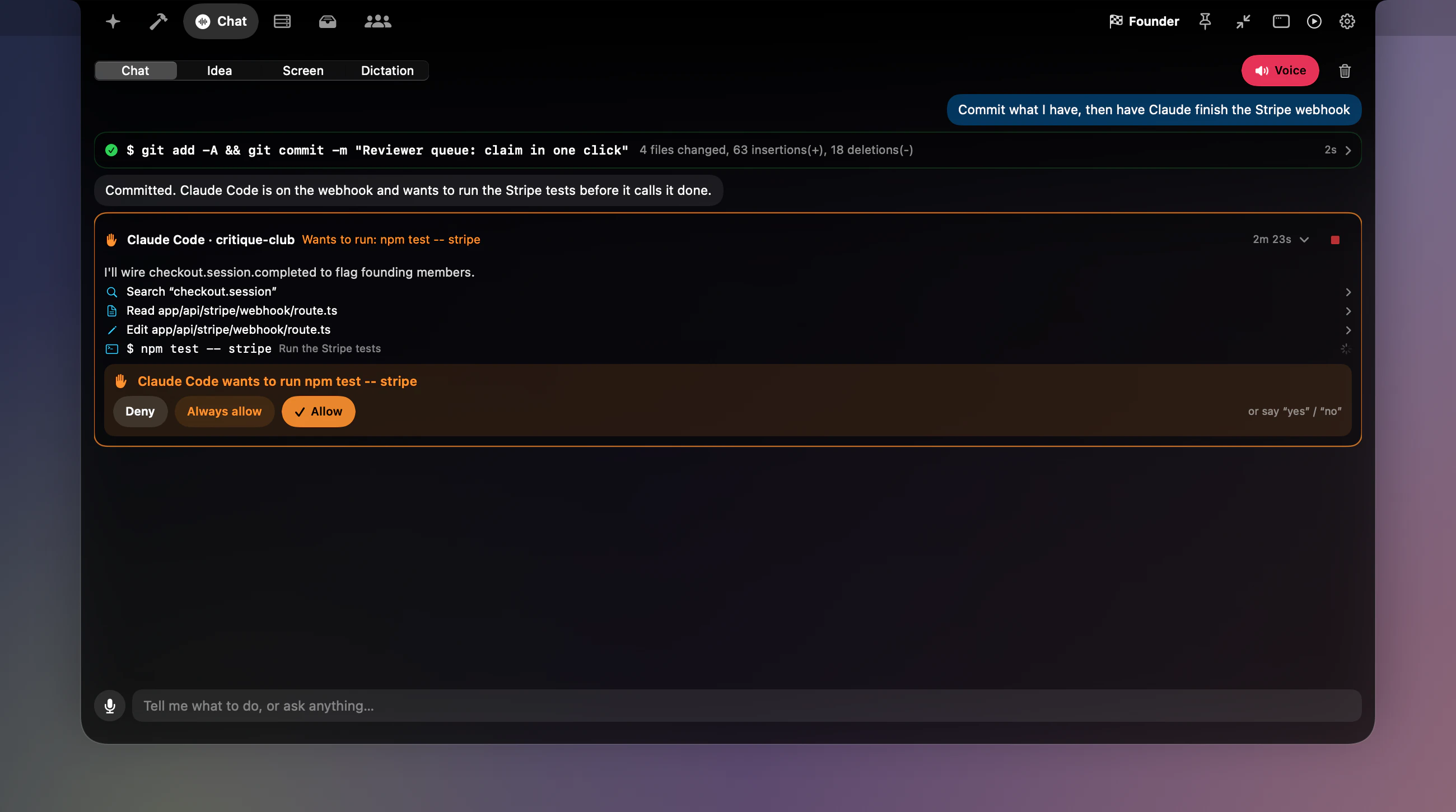
Chat that can do things
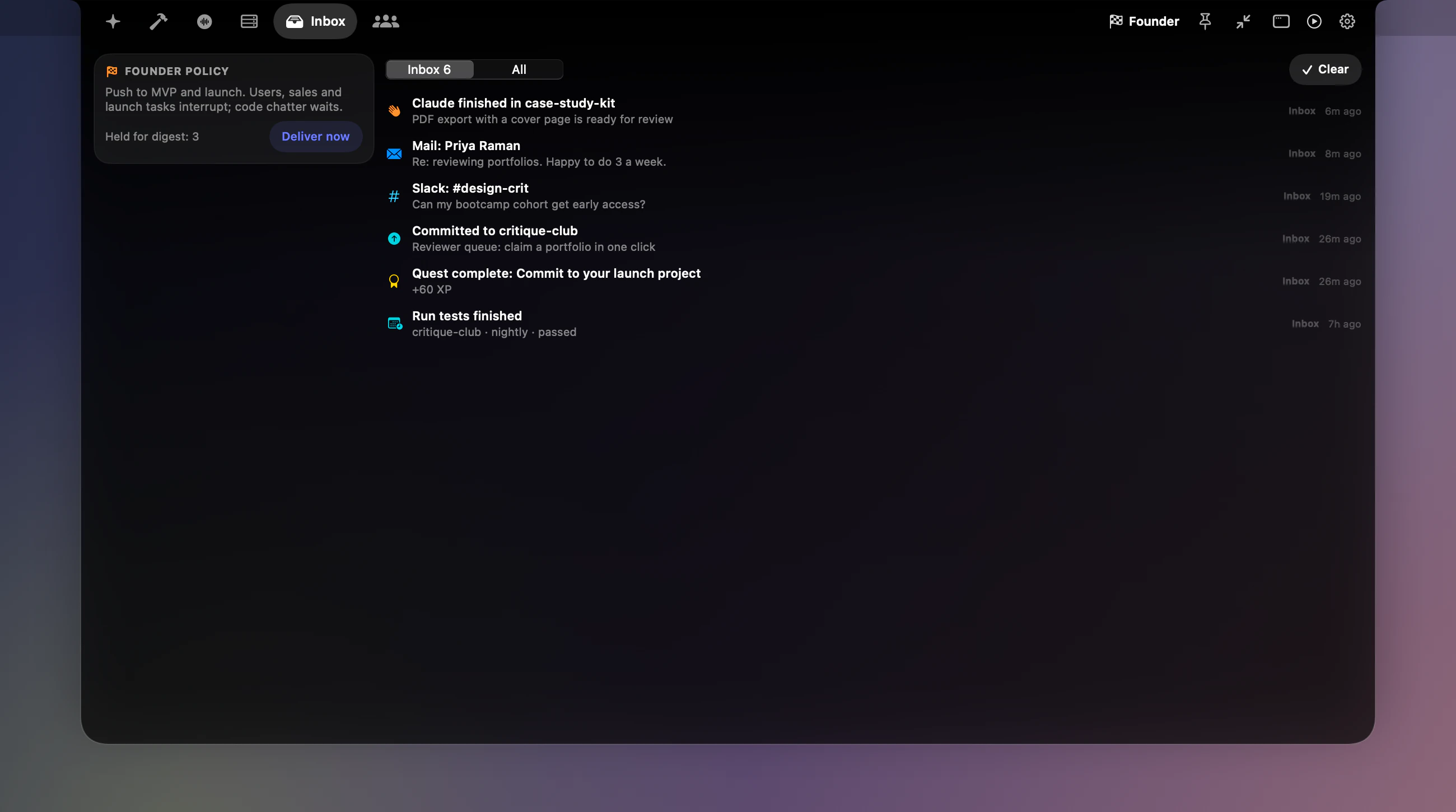
Inbox, ranked by your mode
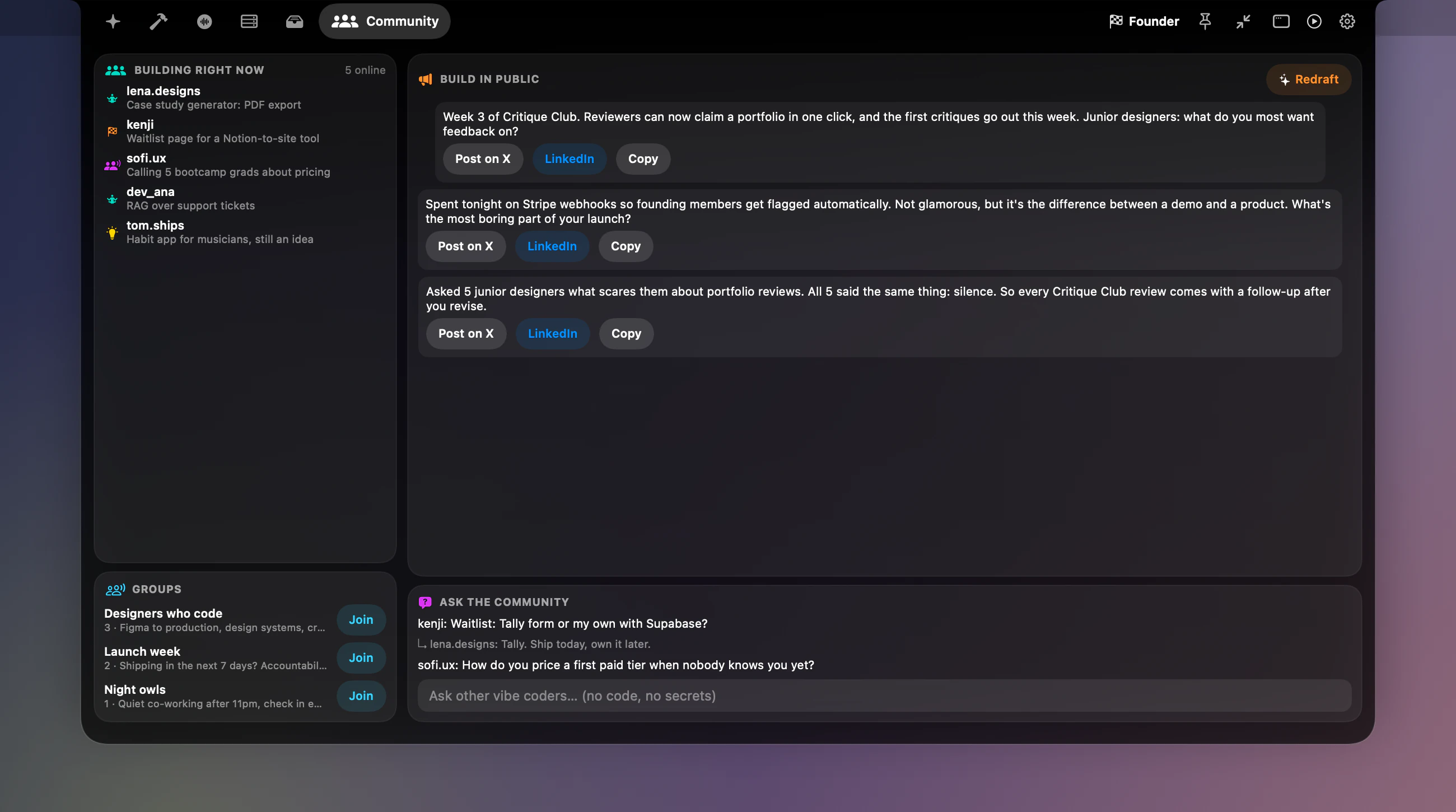
Community
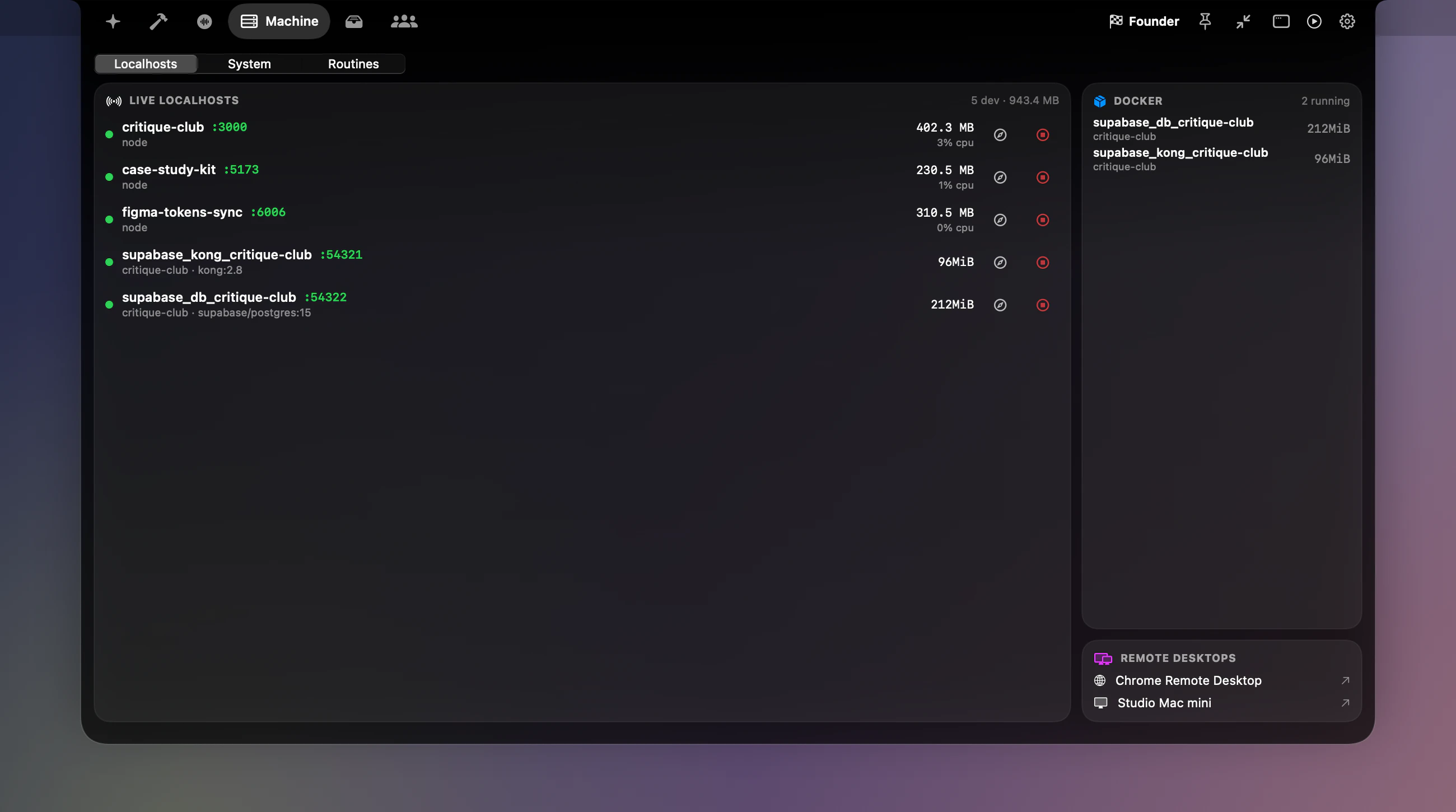
Machine: localhosts
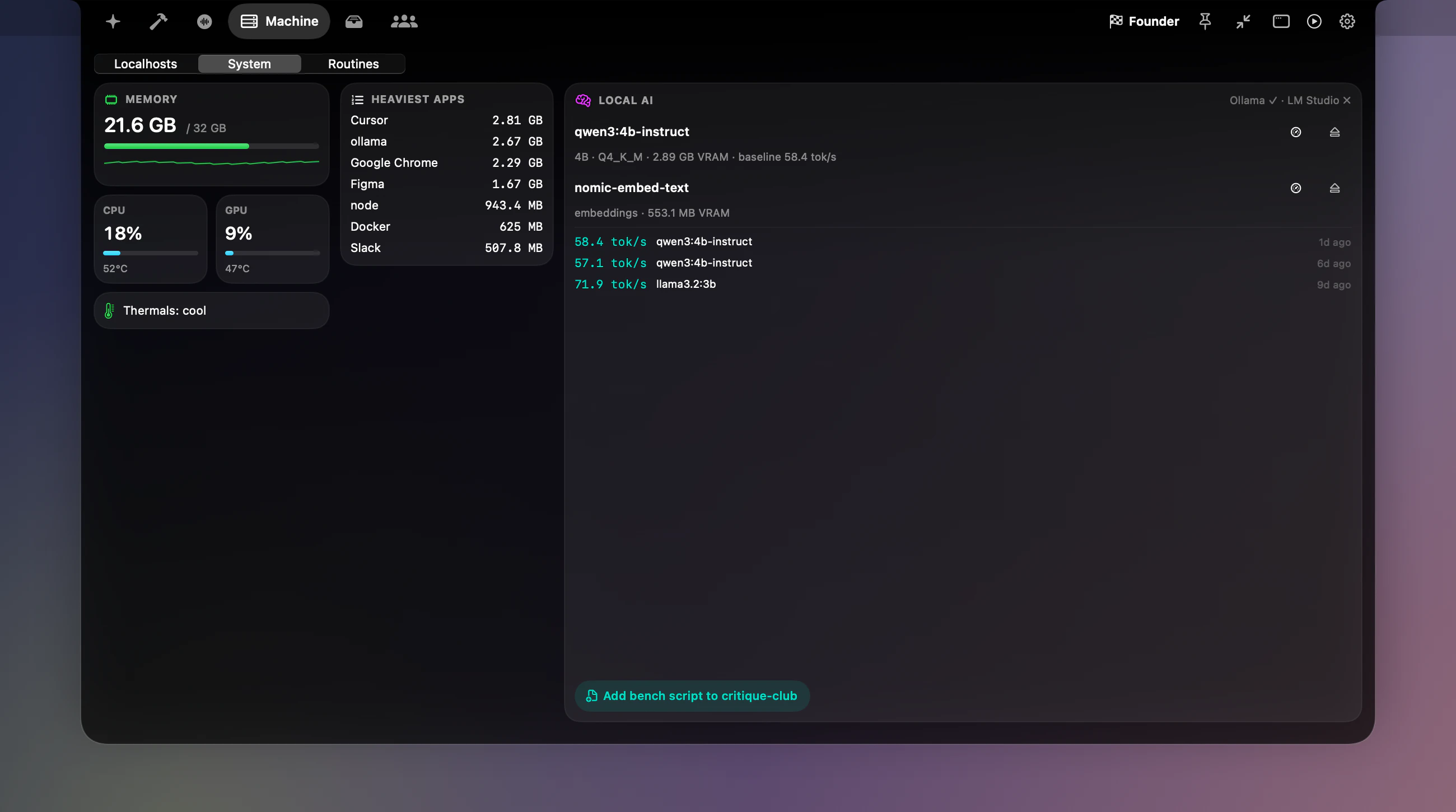
Machine: system
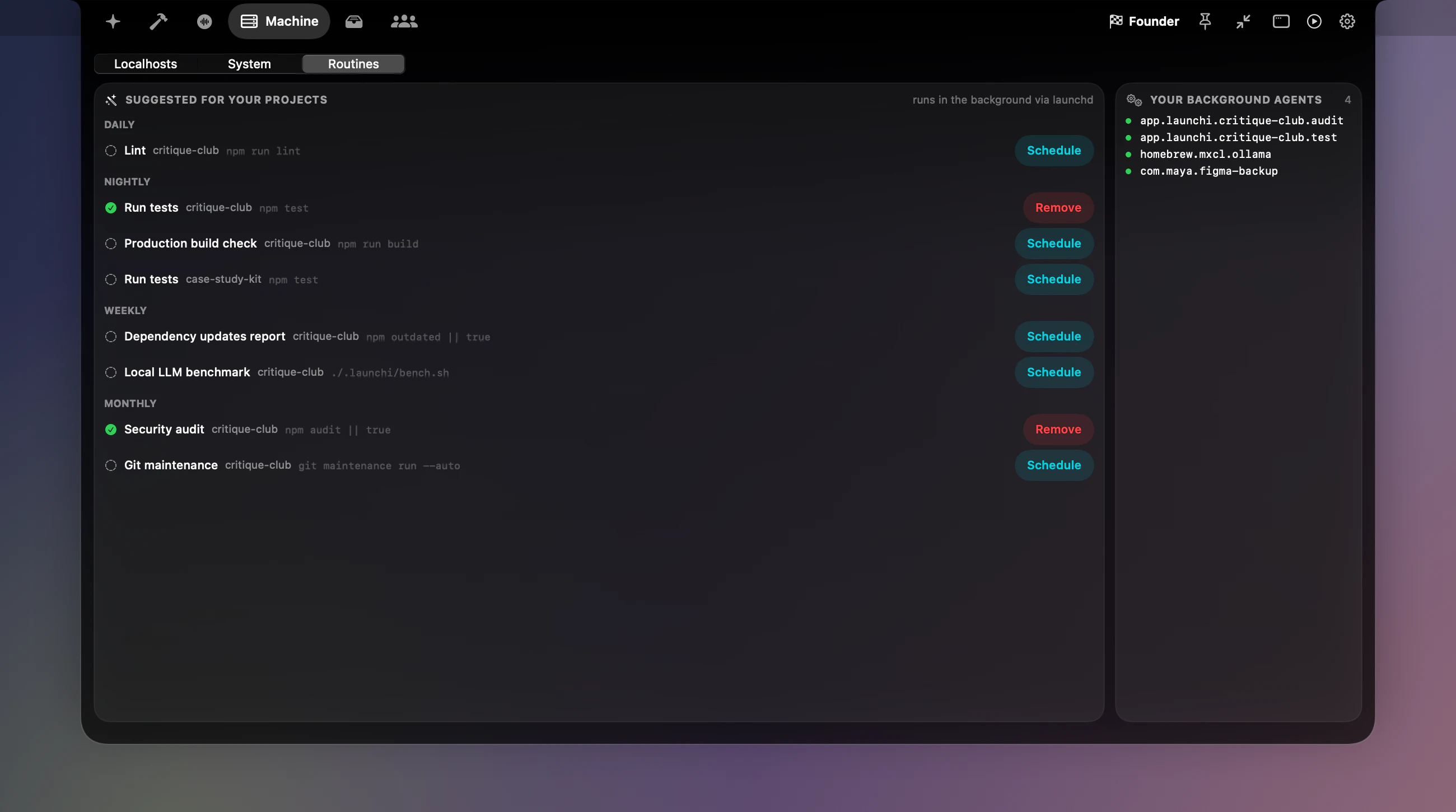
Machine: routines

Monk mode, closed
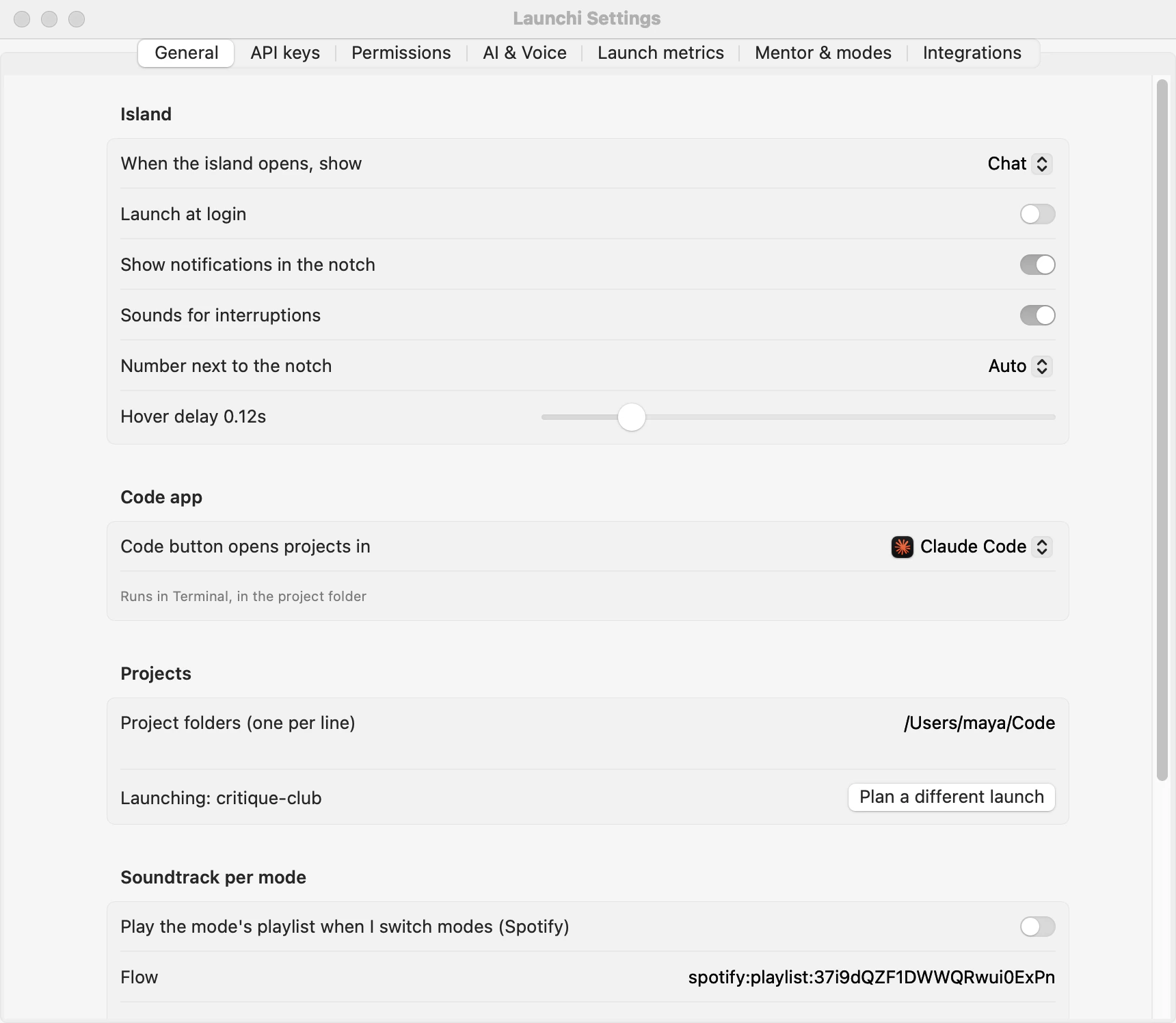
Settings, light
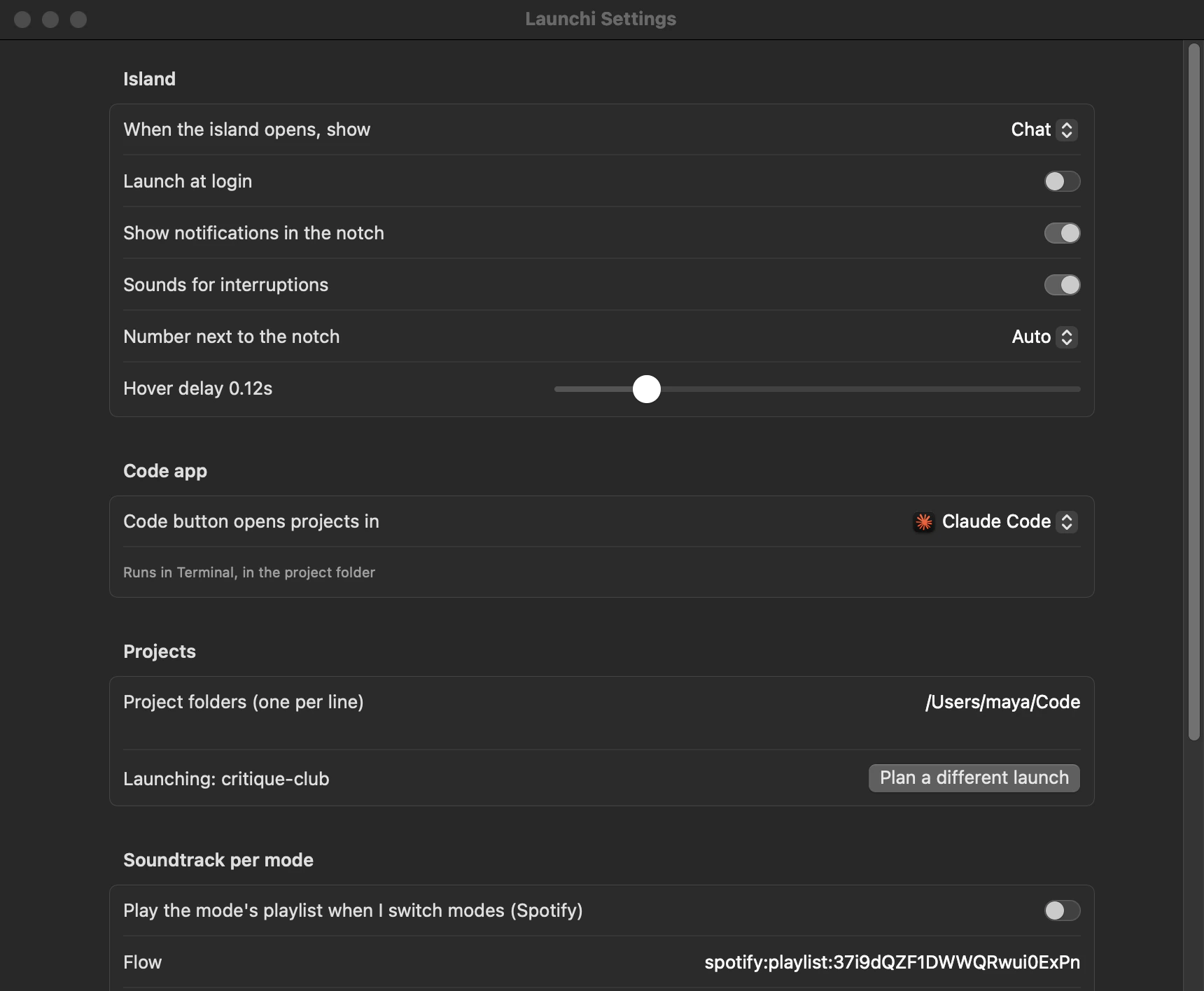
Settings, dark
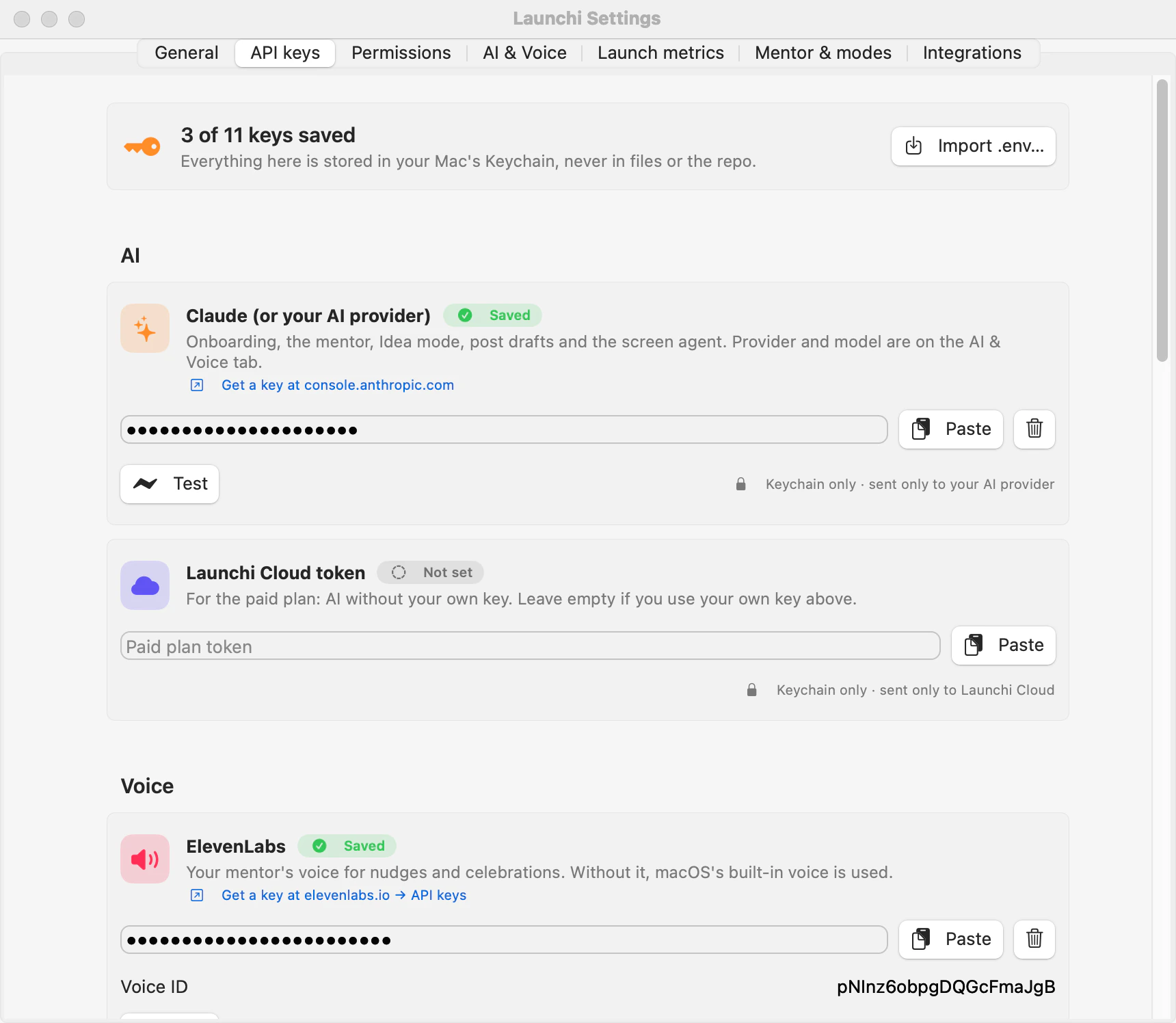
Bring your own keys
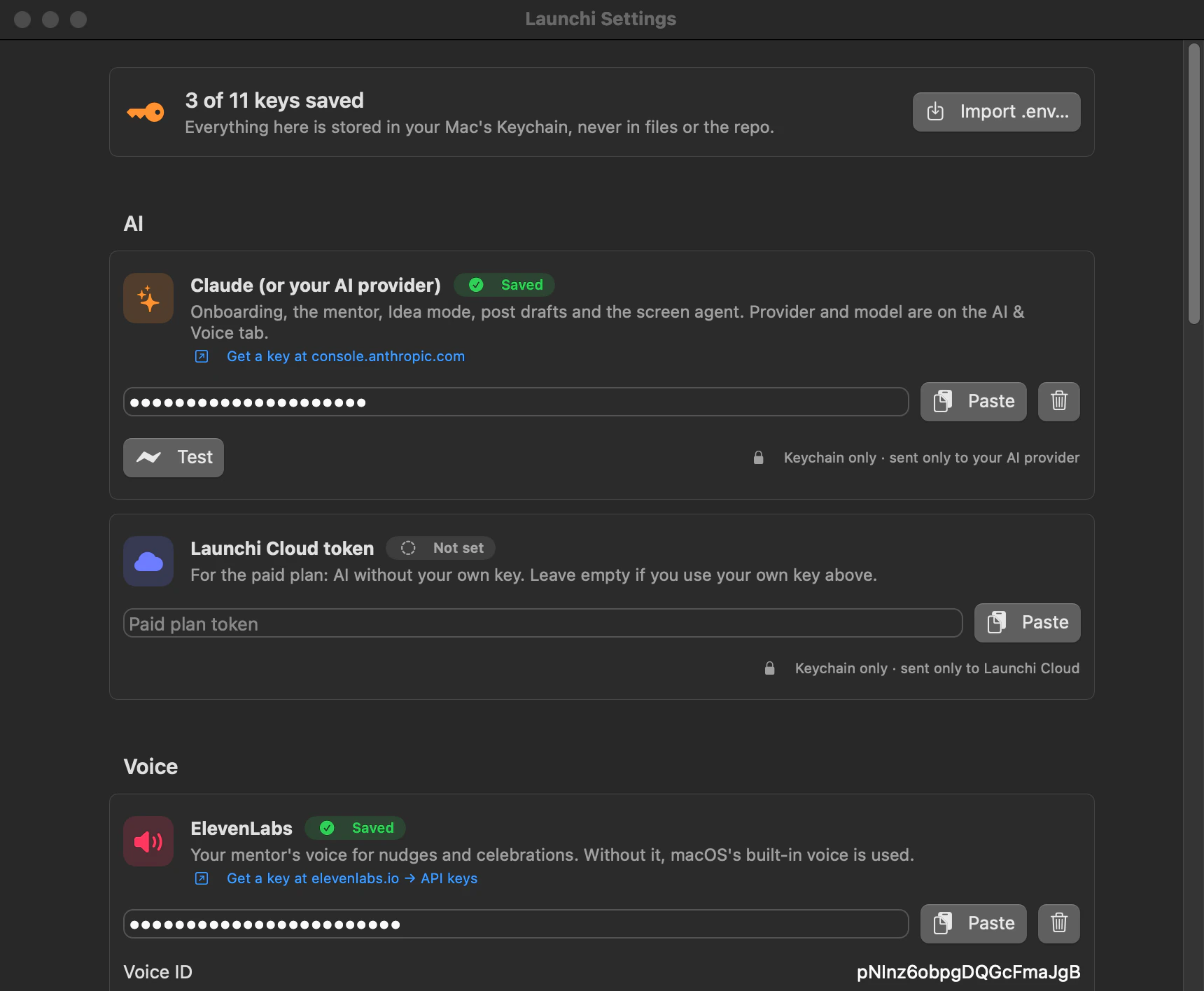
Bring your own keys, dark
Your idea is the first screen.
Three questions to start. No account until you want to save.
Start with your idea